> ## Documentation Index
> Fetch the complete documentation index at: https://zovi.mintlify.site/llms.txt
> Use this file to discover all available pages before exploring further.
# Retail products
> Sell skincare, aftercare, and other physical products alongside your treatments, with stock tracking.
Retail products are the physical items you sell alongside treatments: skincare,
aftercare, supplements, and more. Each product carries its brand, size, price,
SKU, the concerns it addresses, and optional stock tracking.
Open **Retail Products** from the **Catalog** section of the sidebar
(the page subtitle reads *"Manage your retail catalogue"*).
Retail must be **enabled for your clinic** to use this page. If retail is
turned off, **Retail Products** is hidden from the sidebar and the page isn't
available. Contact [info@zoviapp.com](mailto:info@zoviapp.com) if you'd like
it switched on.
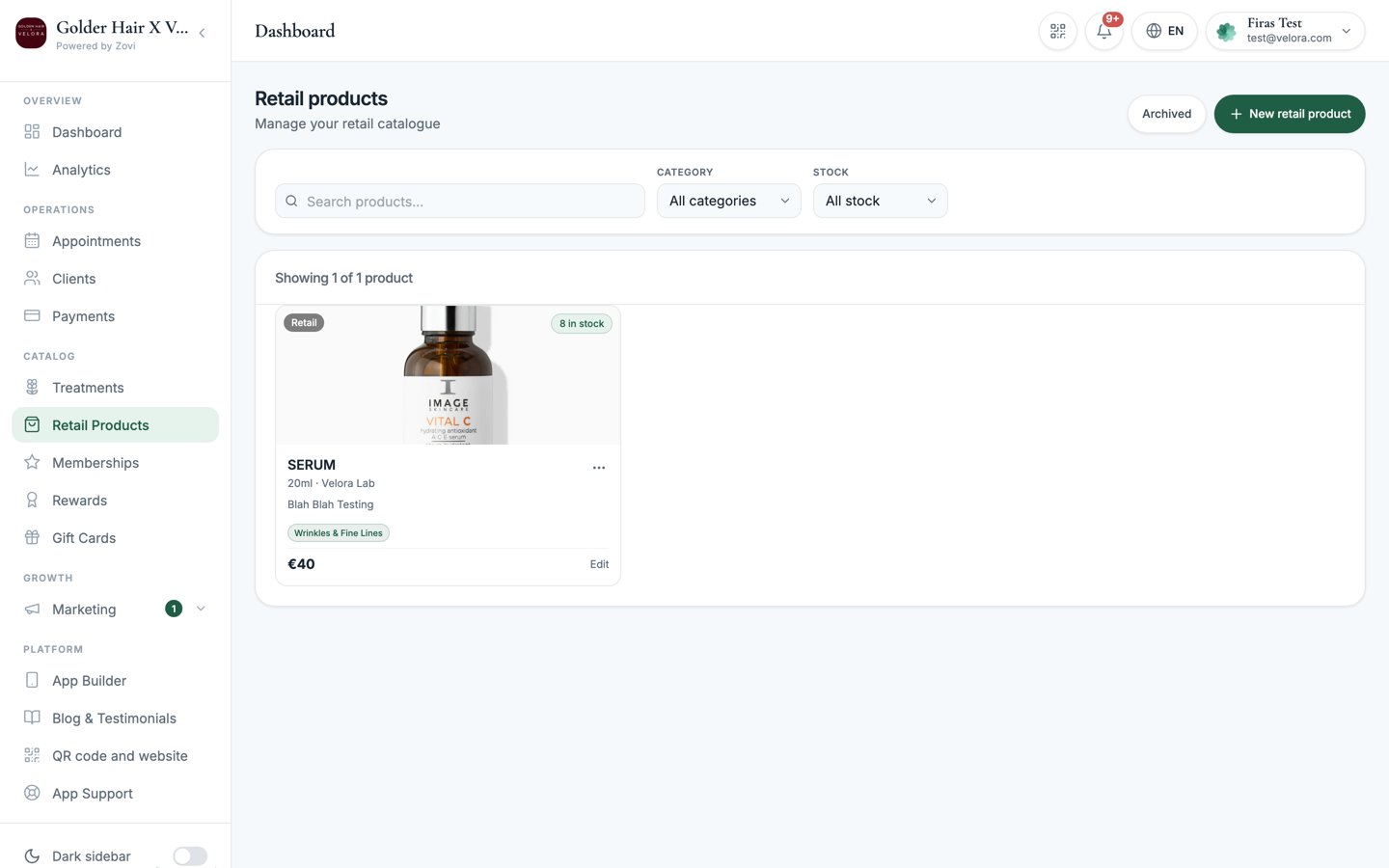 ## The retail products list
Each product appears as a card with its image, a **Retail** pill, a stock badge
(`N in stock`, `Low stock (N)`, `Out of stock`, or `Untracked`), the name,
`{size} · {brand}`, price, and concern chips. Select the **⋯** menu on a card
for **Edit**, **Adjust stock**, and **Archive**.
Use the controls at the top to find a product:
| Control | What it does |
| ---------------------- | ------------------------------------------------------------------------ |
| **Search** | Match by product **name**, **brand**, or **SKU**. |
| **Category filter** | Show only one category. |
| **Stock filter** | Narrow by stock status: `All`, `In stock`, `Low`, `Out`, or `Untracked`. |
| **Archived** | Toggle archived products into view. |
| **New retail product** | Open the create dialog. |
## Add a retail product
Select **New retail product**. Fill in the dialog and select **Create product**.
Set the name, brand, size, price, SKU, category, and concerns.
Choose which locations stock the product.
Decide whether to track stock and set your levels.
Describe the product and add a hero image plus gallery photos.
Select **Create product**. To change a product later, open its **⋯** menu and
select **Edit**, and the footer button then reads **Save changes**.
### Fields
| Field | Notes |
| ---------------- | ----------------------------------------------------------------------------- |
| **Name** | Required. |
| **Brand** | Autocompletes from brands you've used before. |
| **Size** | For example, "50 ml" or "30 capsules". |
| **Price (€)** | Required. Shown in your clinic's currency. |
| **SKU** | Your stock-keeping code. **Must be unique within your clinic.** |
| **Category** | Groups the product in the catalogue. |
| **Concerns** | Multi-select of the [skin concerns](/catalog/concerns) the product addresses. |
| **Availability** | Which locations stock the product (multi-location clinics only). |
| **Description** | Details clients read before buying. |
| **Photos** | A hero image and an optional gallery. |
The field is labelled **Price (€)** whatever currency you run on. Ignore the
euro sign: the amount you type is charged and displayed in your clinic's own
currency, set under [Business info](/settings/business-info).
Each **SKU** must be unique per clinic. If you reuse one, you'll see
*"This SKU is already in use at this clinic"* and won't be able to save until
you change it.
### Inventory
The **Inventory** section controls stock:
| Setting | Notes |
| ----------------------- | ------------------------------------------------------------------------------------ |
| **Track stock** | Turn on to count units and show a live stock badge. Leave off for `Untracked` items. |
| **Current stock** | The number of units you have on hand. |
| **Low-stock threshold** | When stock drops to this number, the product shows a **Low stock** badge. |
## Adjust stock
Once you're tracking stock, use **Adjust stock** to record deliveries, sales
outside the app, breakages, or a stock-take correction, rather than editing the
raw number.
From a product's **⋯** menu, select **Adjust stock**. The dialog shows the
**Current stock** as read-only.
Type a positive number to add stock (for example, `+10` for a delivery) or a
negative number to remove it (for example, `-3` for breakages).
A **Reason** is required. It records *why* the level changed, so your history
stays auditable.
Apply the adjustment. The stock badge updates immediately.
You can't take stock below zero. An adjustment that would do so is blocked with
*"Adjustment would result in negative stock."* Enter a smaller amount or
correct the current count first.
## Archive a product
Retail products are archived rather than deleted, so past orders keep their
records. Open a product's **⋯** menu and select **Archive** to hide it from the
client app. Switch on the **Archived** toggle to view or restore archived
products.
## Where clients see your retail
Retail has its own **Retail** tab in the shop in your client app, sitting
alongside **Treatments**. That tab has its own search plus price and concern
filters, so clients can shop your shelf on its own.
Products also surface when a client browses by concern, mixed in with matching
treatments, so tag them properly. See [Concerns](/catalog/concerns).
## Retail in rewards, memberships and offers
Once you have retail products, you can use them almost anywhere you'd use a
treatment:
* As a **free reward** in your loyalty catalog. See [Loyalty & rewards](/loyalty/rewards).
* As an item in a membership **included-product slot**. See [Memberships](/catalog/memberships).
* As a **New Member Gift** when a client joins a membership plan.
* Inside a **referral reward**, where you choose whether the reward covers all
retail, specific products, or none. See [Referrals](/marketing/referrals).
Check the retail scope on any reward or referral program you set up. Left
unchecked, a reward can apply to your entire shelf rather than the one product
you had in mind.
## Related
Manage the skin concerns you tag products with.
Build the service catalogue clients book alongside retail.
## The retail products list
Each product appears as a card with its image, a **Retail** pill, a stock badge
(`N in stock`, `Low stock (N)`, `Out of stock`, or `Untracked`), the name,
`{size} · {brand}`, price, and concern chips. Select the **⋯** menu on a card
for **Edit**, **Adjust stock**, and **Archive**.
Use the controls at the top to find a product:
| Control | What it does |
| ---------------------- | ------------------------------------------------------------------------ |
| **Search** | Match by product **name**, **brand**, or **SKU**. |
| **Category filter** | Show only one category. |
| **Stock filter** | Narrow by stock status: `All`, `In stock`, `Low`, `Out`, or `Untracked`. |
| **Archived** | Toggle archived products into view. |
| **New retail product** | Open the create dialog. |
## Add a retail product
Select **New retail product**. Fill in the dialog and select **Create product**.
Set the name, brand, size, price, SKU, category, and concerns.
Choose which locations stock the product.
Decide whether to track stock and set your levels.
Describe the product and add a hero image plus gallery photos.
Select **Create product**. To change a product later, open its **⋯** menu and
select **Edit**, and the footer button then reads **Save changes**.
### Fields
| Field | Notes |
| ---------------- | ----------------------------------------------------------------------------- |
| **Name** | Required. |
| **Brand** | Autocompletes from brands you've used before. |
| **Size** | For example, "50 ml" or "30 capsules". |
| **Price (€)** | Required. Shown in your clinic's currency. |
| **SKU** | Your stock-keeping code. **Must be unique within your clinic.** |
| **Category** | Groups the product in the catalogue. |
| **Concerns** | Multi-select of the [skin concerns](/catalog/concerns) the product addresses. |
| **Availability** | Which locations stock the product (multi-location clinics only). |
| **Description** | Details clients read before buying. |
| **Photos** | A hero image and an optional gallery. |
The field is labelled **Price (€)** whatever currency you run on. Ignore the
euro sign: the amount you type is charged and displayed in your clinic's own
currency, set under [Business info](/settings/business-info).
Each **SKU** must be unique per clinic. If you reuse one, you'll see
*"This SKU is already in use at this clinic"* and won't be able to save until
you change it.
### Inventory
The **Inventory** section controls stock:
| Setting | Notes |
| ----------------------- | ------------------------------------------------------------------------------------ |
| **Track stock** | Turn on to count units and show a live stock badge. Leave off for `Untracked` items. |
| **Current stock** | The number of units you have on hand. |
| **Low-stock threshold** | When stock drops to this number, the product shows a **Low stock** badge. |
## Adjust stock
Once you're tracking stock, use **Adjust stock** to record deliveries, sales
outside the app, breakages, or a stock-take correction, rather than editing the
raw number.
From a product's **⋯** menu, select **Adjust stock**. The dialog shows the
**Current stock** as read-only.
Type a positive number to add stock (for example, `+10` for a delivery) or a
negative number to remove it (for example, `-3` for breakages).
A **Reason** is required. It records *why* the level changed, so your history
stays auditable.
Apply the adjustment. The stock badge updates immediately.
You can't take stock below zero. An adjustment that would do so is blocked with
*"Adjustment would result in negative stock."* Enter a smaller amount or
correct the current count first.
## Archive a product
Retail products are archived rather than deleted, so past orders keep their
records. Open a product's **⋯** menu and select **Archive** to hide it from the
client app. Switch on the **Archived** toggle to view or restore archived
products.
## Where clients see your retail
Retail has its own **Retail** tab in the shop in your client app, sitting
alongside **Treatments**. That tab has its own search plus price and concern
filters, so clients can shop your shelf on its own.
Products also surface when a client browses by concern, mixed in with matching
treatments, so tag them properly. See [Concerns](/catalog/concerns).
## Retail in rewards, memberships and offers
Once you have retail products, you can use them almost anywhere you'd use a
treatment:
* As a **free reward** in your loyalty catalog. See [Loyalty & rewards](/loyalty/rewards).
* As an item in a membership **included-product slot**. See [Memberships](/catalog/memberships).
* As a **New Member Gift** when a client joins a membership plan.
* Inside a **referral reward**, where you choose whether the reward covers all
retail, specific products, or none. See [Referrals](/marketing/referrals).
Check the retail scope on any reward or referral program you set up. Left
unchecked, a reward can apply to your entire shelf rather than the one product
you had in mind.
## Related
Manage the skin concerns you tag products with.
Build the service catalogue clients book alongside retail.