> ## Documentation Index
> Fetch the complete documentation index at: https://zovi.mintlify.site/llms.txt
> Use this file to discover all available pages before exploring further.
# Treatments
> Build and manage your service catalogue: the treatments clients browse, book, and buy in your app.
Treatments are your service catalogue. Everything a client can browse and book
lives here: facials, injectables, laser, body, and hair. Each treatment carries
its price, duration, photos, the concerns it addresses, and any course packages
you offer.
Open **Treatments** from the **Catalog** section of the sidebar
(the page subtitle reads *"Manage your service catalogue"*).
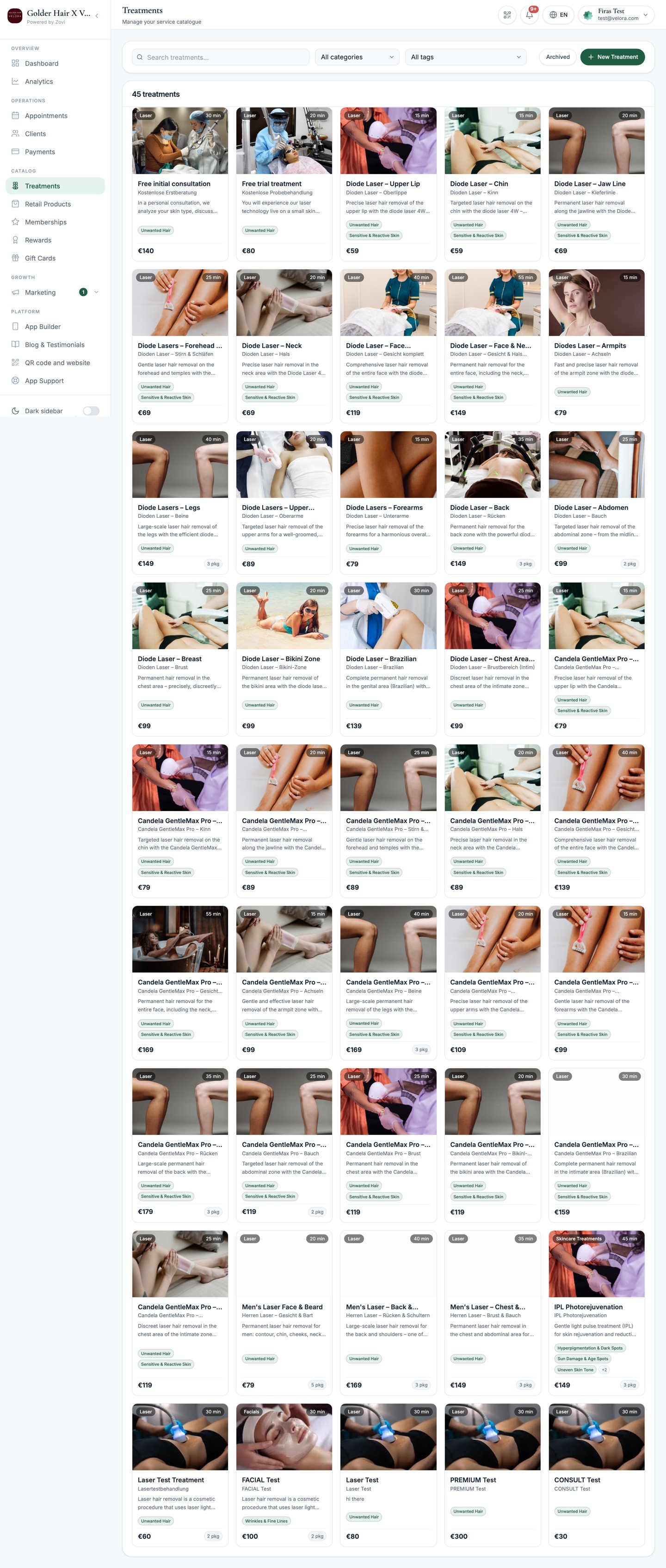 ## The treatments list
Each treatment appears as a card showing its hero image, category pill, duration
(`{n} min`), name, price, the concerns it targets, and a `N pkg` badge if it has
course packages. Hover over a card to reveal **Edit**, **Duplicate**, and
**Archive**.
Use the controls at the top to find a treatment:
| Control | What it does |
| --------------------- | ----------------------------------------------------------------- |
| **Search** | Match by treatment name. |
| **Category filter** | Show only one category (for example, Facials or Injectables). |
| **All tags** | Filter by the [concern](/catalog/concerns) a treatment addresses. |
| **Active / Archived** | Toggle between live treatments and archived ones. |
| **New Treatment** | Open the create dialog. |
## Create a treatment
Select **New Treatment** in the top-right. The dialog is organised into tabs:
**Basics**, **Content**, **Before & After**, **Testimonials**, **Media**, and
**Packages**. Only **Basics** is required to save; the rest enrich how the
treatment looks in the app.
Set the essentials on the **Basics** tab. **Name**, **Price (€)**, and
**Duration** are required.
Move through the **Content**, **Before & After**, **Testimonials**, and
**Media** tabs to describe the treatment and add photos.
On the **Packages** tab, add discounted multi-session courses.
Select **Create Treatment**. You'll see a *Treatment created* confirmation,
and the treatment appears in your list, and in the client app.
To change an existing treatment later, hover its card and select **Edit**. The
same tabbed dialog opens; the footer button reads **Save Changes** and you'll see
a *Treatment updated* confirmation.
### Basics
| Field | Notes |
| ----------------------------------------- | ----------------------------------------------------------------------------------------------------------- |
| **Name** | Required. What clients see in the app. |
| **Price (€)** | Required. Shown in your clinic's currency. |
| **Duration (min)** | Required. Used for scheduling and shown on the card. |
| **Recommended rebooking interval (days)** | How long until the client should come back. Drives rebooking prompts. |
| **Recommended For** | `Everyone`, `Men`, or `Women`. Powers a filter in the client app. See below. |
| **Membership-only** | Hides the treatment from the general shop so only members can book it. |
| **External Booking URL** | Send bookings to an outside link instead of native booking. |
| **Category** | Groups the treatment (for example, Facials, Injectables). |
| **Margin band** | Controls whether the treatment can be automatically discounted. See below. |
| **Concerns** | Multi-select of the [skin concerns](/catalog/concerns) this treatment addresses. Powers how clients browse. |
| **Tags** | Extra keywords for search and filtering. |
| **Available at** | Choose which locations offer this treatment. Appears only if your clinic has more than one location. |
The field is labelled **Price (€)** whatever currency you run on. Ignore the
euro sign: the amount you type is charged and displayed in your clinic's own
currency, set under [Business info](/settings/business-info).
**Margin band** protects your profitability from automated discounts. Choose
`Not set`, `High`, `Medium`, or `Tight`. Setting a treatment to **`Tight`
blocks automated discounts** on it, so the loyalty engine steers clients toward
points instead of price cuts. Use it for low-margin services you don't want
discounted.
**Recommended For** describes the treatment, not the client. Clients use it as
a filter when they browse, so a beard-sculpting treatment set to `Men` shows up
when someone filters that way. Left as `Everyone`, the treatment stays visible
to everybody.
It also feeds Zovi's recommendation engine. Set it to anything other than
`Everyone` and the treatment becomes more likely to be recommended to a client
who matches, so it does more than filter browsing.
### Content
Write the marketing copy clients read before booking:
* **About this treatment**: what it is and what it does.
* **Why this treatment?**: the benefits and the results to expect.
### Before & After
Set expectations around the visit:
* **Before your treatment**: how clients should prepare.
* **Aftercare**: what to do afterwards.
### Testimonials
Add social proof. Each testimonial is repeatable, with a **Quote** (required),
an **Author name**, and optional **Before / After images**. Add as many as you
like.
### Media
* **Hero Image**: the main photo on the treatment card and detail page.
* **Gallery**: additional images clients can browse.
* **Pick from library**: open a grid of stock photos to use instead of your own.
**Pick from library** only appears once you've set a **Category** on the
**Basics** tab, because the library is filtered to photos that suit that
category.
Photos you upload yourself stay private to your clinic. They are never added to
the shared stock library that other clinics see.
### Packages
Packages (also called *course variations*) are discounted bundles of multiple
sessions. A client picks one package at checkout.
| Field | Notes |
| ------------------------ | -------------------------------------------------------------------- |
| **Package Name** | Required. For example, "Course of 6". |
| **Price (€)** | Required. The total price of the package, in your clinic's currency. |
| **Sessions** | How many sessions are included. |
| **Discount %** | The saving versus booking sessions individually. |
| **External Booking URL** | Optional. Sends bookings for this package to an outside link. |
Every package is fully editable in place. Reopen the treatment, change any field
on an existing package, and save. You don't have to delete a package and rebuild
it to correct it.
A package's **External Booking URL** overrides the treatment's own booking URL
for that one package. It's useful when your booking platform has a dedicated link
for a specific course.
Packages show up as a `N pkg` badge on the treatment card, so clients can see
at a glance that a course option exists.
A booking link that contains a fixed date or time slot will not update itself.
Re-copy it from your booking platform now and then, or clients will land on a
slot that is long gone. This applies to both the treatment-level **External
Booking URL** and any package-level one.
## Duplicate a treatment
To create a near-identical treatment, hover its card and select **Duplicate**.
This copies every field into a new draft you can rename and adjust, handy for
variants that share most of their details.
## Archive and restore
Treatments are never deleted. They're archived, so historical bookings and
records stay intact.
Hover the treatment card and select **Archive**. It's hidden from the client
app and moves to the **Archived** view.
Switch the list to **Archived**, find the treatment, and restore it to bring
it back to **Active**.
**Archiving is refused while the treatment is still promised somewhere.** The
dashboard names exactly what to clear first. It blocks the archive when the
treatment is used in a membership benefit or included slot, an enabled **New
Member Gift**, an active reward, an offer that hasn't expired yet, a pending
Smart Offer suggestion, an enabled automation, or an unused client package or
membership credit. This protects clients from being promised a treatment you
can no longer deliver. Past bookings and finished offers never block archiving.
Injectable treatments are automatically flagged as health-and-wellness
sensitive. This limits free-treatment rewards from applying to them, see the
rule in [Loyalty & rewards](/loyalty/rewards).
## Related
Manage the skin concerns you tag treatments with.
Bundle treatments into recurring plans with member discounts.
## The treatments list
Each treatment appears as a card showing its hero image, category pill, duration
(`{n} min`), name, price, the concerns it targets, and a `N pkg` badge if it has
course packages. Hover over a card to reveal **Edit**, **Duplicate**, and
**Archive**.
Use the controls at the top to find a treatment:
| Control | What it does |
| --------------------- | ----------------------------------------------------------------- |
| **Search** | Match by treatment name. |
| **Category filter** | Show only one category (for example, Facials or Injectables). |
| **All tags** | Filter by the [concern](/catalog/concerns) a treatment addresses. |
| **Active / Archived** | Toggle between live treatments and archived ones. |
| **New Treatment** | Open the create dialog. |
## Create a treatment
Select **New Treatment** in the top-right. The dialog is organised into tabs:
**Basics**, **Content**, **Before & After**, **Testimonials**, **Media**, and
**Packages**. Only **Basics** is required to save; the rest enrich how the
treatment looks in the app.
Set the essentials on the **Basics** tab. **Name**, **Price (€)**, and
**Duration** are required.
Move through the **Content**, **Before & After**, **Testimonials**, and
**Media** tabs to describe the treatment and add photos.
On the **Packages** tab, add discounted multi-session courses.
Select **Create Treatment**. You'll see a *Treatment created* confirmation,
and the treatment appears in your list, and in the client app.
To change an existing treatment later, hover its card and select **Edit**. The
same tabbed dialog opens; the footer button reads **Save Changes** and you'll see
a *Treatment updated* confirmation.
### Basics
| Field | Notes |
| ----------------------------------------- | ----------------------------------------------------------------------------------------------------------- |
| **Name** | Required. What clients see in the app. |
| **Price (€)** | Required. Shown in your clinic's currency. |
| **Duration (min)** | Required. Used for scheduling and shown on the card. |
| **Recommended rebooking interval (days)** | How long until the client should come back. Drives rebooking prompts. |
| **Recommended For** | `Everyone`, `Men`, or `Women`. Powers a filter in the client app. See below. |
| **Membership-only** | Hides the treatment from the general shop so only members can book it. |
| **External Booking URL** | Send bookings to an outside link instead of native booking. |
| **Category** | Groups the treatment (for example, Facials, Injectables). |
| **Margin band** | Controls whether the treatment can be automatically discounted. See below. |
| **Concerns** | Multi-select of the [skin concerns](/catalog/concerns) this treatment addresses. Powers how clients browse. |
| **Tags** | Extra keywords for search and filtering. |
| **Available at** | Choose which locations offer this treatment. Appears only if your clinic has more than one location. |
The field is labelled **Price (€)** whatever currency you run on. Ignore the
euro sign: the amount you type is charged and displayed in your clinic's own
currency, set under [Business info](/settings/business-info).
**Margin band** protects your profitability from automated discounts. Choose
`Not set`, `High`, `Medium`, or `Tight`. Setting a treatment to **`Tight`
blocks automated discounts** on it, so the loyalty engine steers clients toward
points instead of price cuts. Use it for low-margin services you don't want
discounted.
**Recommended For** describes the treatment, not the client. Clients use it as
a filter when they browse, so a beard-sculpting treatment set to `Men` shows up
when someone filters that way. Left as `Everyone`, the treatment stays visible
to everybody.
It also feeds Zovi's recommendation engine. Set it to anything other than
`Everyone` and the treatment becomes more likely to be recommended to a client
who matches, so it does more than filter browsing.
### Content
Write the marketing copy clients read before booking:
* **About this treatment**: what it is and what it does.
* **Why this treatment?**: the benefits and the results to expect.
### Before & After
Set expectations around the visit:
* **Before your treatment**: how clients should prepare.
* **Aftercare**: what to do afterwards.
### Testimonials
Add social proof. Each testimonial is repeatable, with a **Quote** (required),
an **Author name**, and optional **Before / After images**. Add as many as you
like.
### Media
* **Hero Image**: the main photo on the treatment card and detail page.
* **Gallery**: additional images clients can browse.
* **Pick from library**: open a grid of stock photos to use instead of your own.
**Pick from library** only appears once you've set a **Category** on the
**Basics** tab, because the library is filtered to photos that suit that
category.
Photos you upload yourself stay private to your clinic. They are never added to
the shared stock library that other clinics see.
### Packages
Packages (also called *course variations*) are discounted bundles of multiple
sessions. A client picks one package at checkout.
| Field | Notes |
| ------------------------ | -------------------------------------------------------------------- |
| **Package Name** | Required. For example, "Course of 6". |
| **Price (€)** | Required. The total price of the package, in your clinic's currency. |
| **Sessions** | How many sessions are included. |
| **Discount %** | The saving versus booking sessions individually. |
| **External Booking URL** | Optional. Sends bookings for this package to an outside link. |
Every package is fully editable in place. Reopen the treatment, change any field
on an existing package, and save. You don't have to delete a package and rebuild
it to correct it.
A package's **External Booking URL** overrides the treatment's own booking URL
for that one package. It's useful when your booking platform has a dedicated link
for a specific course.
Packages show up as a `N pkg` badge on the treatment card, so clients can see
at a glance that a course option exists.
A booking link that contains a fixed date or time slot will not update itself.
Re-copy it from your booking platform now and then, or clients will land on a
slot that is long gone. This applies to both the treatment-level **External
Booking URL** and any package-level one.
## Duplicate a treatment
To create a near-identical treatment, hover its card and select **Duplicate**.
This copies every field into a new draft you can rename and adjust, handy for
variants that share most of their details.
## Archive and restore
Treatments are never deleted. They're archived, so historical bookings and
records stay intact.
Hover the treatment card and select **Archive**. It's hidden from the client
app and moves to the **Archived** view.
Switch the list to **Archived**, find the treatment, and restore it to bring
it back to **Active**.
**Archiving is refused while the treatment is still promised somewhere.** The
dashboard names exactly what to clear first. It blocks the archive when the
treatment is used in a membership benefit or included slot, an enabled **New
Member Gift**, an active reward, an offer that hasn't expired yet, a pending
Smart Offer suggestion, an enabled automation, or an unused client package or
membership credit. This protects clients from being promised a treatment you
can no longer deliver. Past bookings and finished offers never block archiving.
Injectable treatments are automatically flagged as health-and-wellness
sensitive. This limits free-treatment rewards from applying to them, see the
rule in [Loyalty & rewards](/loyalty/rewards).
## Related
Manage the skin concerns you tag treatments with.
Bundle treatments into recurring plans with member discounts.