> ## Documentation Index
> Fetch the complete documentation index at: https://zovi.mintlify.site/llms.txt
> Use this file to discover all available pages before exploring further.
# Check a client in by scanning
> Use the Scan QR button to check clients in for loyalty points, redeem their rewards at the counter, or open an order to fulfil.
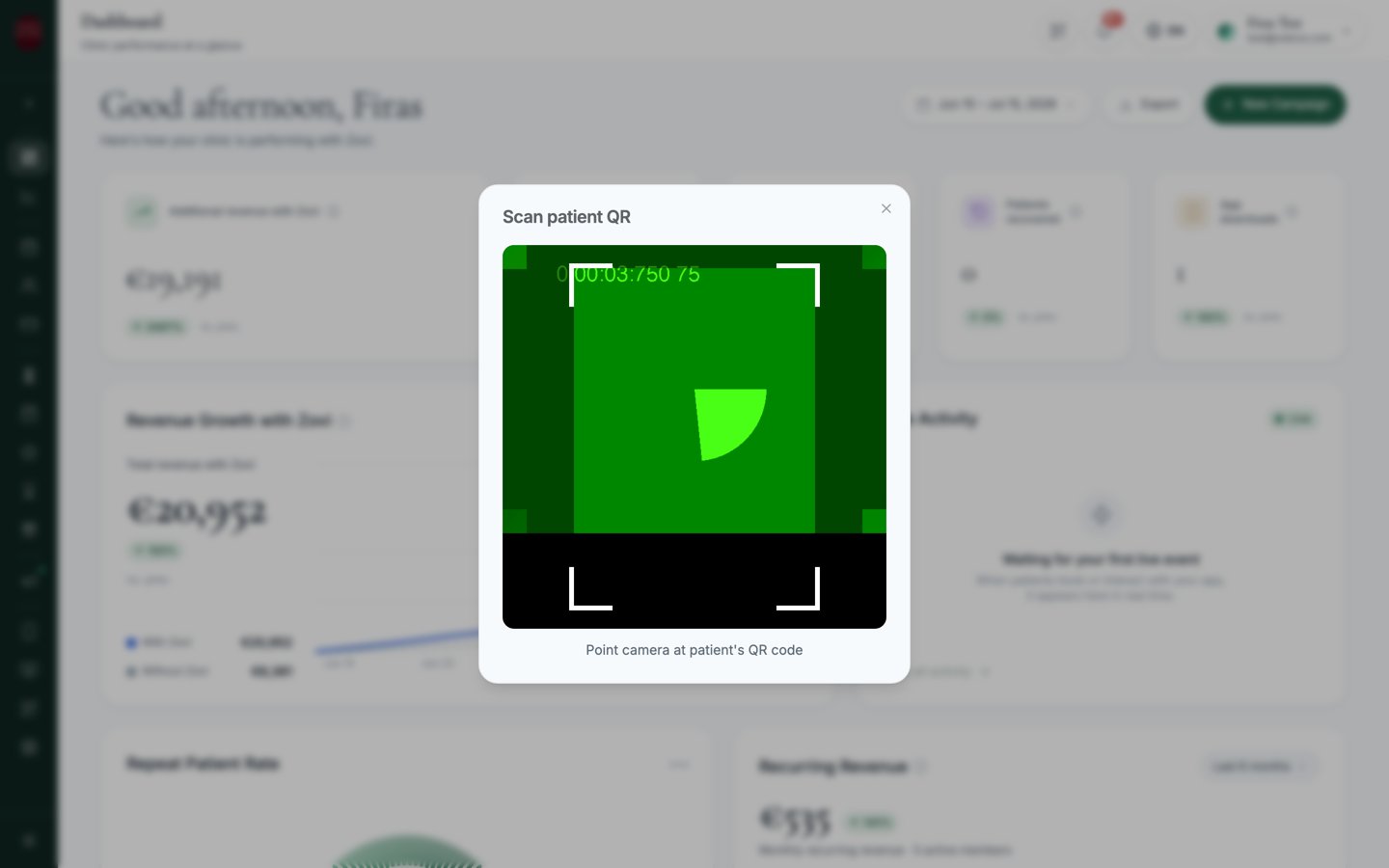
The **Scan QR** button in the top bar opens your camera to scan a client's QR
code. It's how you check clients in when they arrive, hand over rewards, and pull
up orders at the counter, all from one scanner.
This scanner is for your **existing clients**. To bring **new** clients in, share
your clinic's join code instead. See [QR code and website](/checkin/qr-codes).
## One scanner, three kinds of QR
When you open **Scan QR** ("Scan patient QR" / "Point camera at patient's QR
code"), the scanner recognises three kinds of client QR and does the right thing
automatically:
| QR type | What happens |
| ----------------------- | --------------------------------------------------------------------------------------------------------------------------------------------------------------------- |
| **Identity / check-in** | Checks the client in and **awards check-in loyalty points** |
| **Redeem** | Redeems a reward or a booked session at the counter |
| **Order** | Opens the client's order so you can fulfil it. For a [custom plan](/clients/custom-plans), this same QR also checks the client in, and it's the only QR the plan uses |
The client shows the matching QR from their **Beauty Circle app**: the check-in
QR to earn points, or a reward or order QR when redeeming or collecting.
 ## Check a client in
Use this when a client arrives for their visit and wants their check-in points.
Select **Scan QR** in the top bar. Your camera opens with "Scan patient QR".
The client opens their **Beauty Circle app** and shows their **check-in QR**.
The app tells them to have this QR scanned to earn check-in points.
Line the QR up in the camera view. The scanner reads it automatically, no
button to press.
A toast confirms it: **"{name} checked in (+{points} pts)"**. If they've
already checked in, you'll see an **"already checked in"** message instead.
Check-in points are awarded here automatically. You only need **Adjust Points**
on the client's profile for manual credits or corrections, see
[Offers & rewards](/clients/offers-and-rewards#give-or-adjust-points-and-rewards).
## Redeem a reward or session
When a client wants to redeem a reward or a booked session, they show its QR and
you scan it the same way. The scanner confirms **"Redeemed: {name} × {qty}"**.
This records the redemption so the same reward or session can't be spent twice.
Rewards are set up under [Loyalty & rewards](/loyalty/rewards).
## Open an order to fulfil
If the client shows an **order** QR, the scanner opens that order, showing
**"{name}, order scanned"**, with a way to **view the order** and fulfil it at the
counter.
## When scanning doesn't work
You'll see **"Camera permission denied or unavailable"** if the browser or
device hasn't given Zovi access to the camera. Allow camera access for
dashboard.zoviapp.com in your browser or device settings, then reopen **Scan QR**. On
a shared device, check that another app isn't already using the camera.
**"Unrecognised QR code format"** means the code isn't a Zovi client QR. Make
sure the client is showing a QR from their **Beauty Circle app** (the
check-in, reward, or order QR), and not a different app's code or your
clinic's own join QR.
If a client has already checked in today, scanning again shows **"already
checked in"** and won't award points twice. Redemptions work the same way, a
reward or session that's already been redeemed can't be spent again. This is
expected, and protects against double-spending.
## Related
Set up how clients earn check-in points and what they can redeem.
See orders and payments behind the counter.
## Check a client in
Use this when a client arrives for their visit and wants their check-in points.
Select **Scan QR** in the top bar. Your camera opens with "Scan patient QR".
The client opens their **Beauty Circle app** and shows their **check-in QR**.
The app tells them to have this QR scanned to earn check-in points.
Line the QR up in the camera view. The scanner reads it automatically, no
button to press.
A toast confirms it: **"{name} checked in (+{points} pts)"**. If they've
already checked in, you'll see an **"already checked in"** message instead.
Check-in points are awarded here automatically. You only need **Adjust Points**
on the client's profile for manual credits or corrections, see
[Offers & rewards](/clients/offers-and-rewards#give-or-adjust-points-and-rewards).
## Redeem a reward or session
When a client wants to redeem a reward or a booked session, they show its QR and
you scan it the same way. The scanner confirms **"Redeemed: {name} × {qty}"**.
This records the redemption so the same reward or session can't be spent twice.
Rewards are set up under [Loyalty & rewards](/loyalty/rewards).
## Open an order to fulfil
If the client shows an **order** QR, the scanner opens that order, showing
**"{name}, order scanned"**, with a way to **view the order** and fulfil it at the
counter.
## When scanning doesn't work
You'll see **"Camera permission denied or unavailable"** if the browser or
device hasn't given Zovi access to the camera. Allow camera access for
dashboard.zoviapp.com in your browser or device settings, then reopen **Scan QR**. On
a shared device, check that another app isn't already using the camera.
**"Unrecognised QR code format"** means the code isn't a Zovi client QR. Make
sure the client is showing a QR from their **Beauty Circle app** (the
check-in, reward, or order QR), and not a different app's code or your
clinic's own join QR.
If a client has already checked in today, scanning again shows **"already
checked in"** and won't award points twice. Redemptions work the same way, a
reward or session that's already been redeemed can't be spent again. This is
expected, and protects against double-spending.
## Related
Set up how clients earn check-in points and what they can redeem.
See orders and payments behind the counter.