> ## Documentation Index
> Fetch the complete documentation index at: https://zovi.mintlify.site/llms.txt
> Use this file to discover all available pages before exploring further.
# Answering your clients (App Support)
> Handle support requests your clients send from the Beauty Circle App: read, reply, and resolve tickets from a single two-pane inbox.
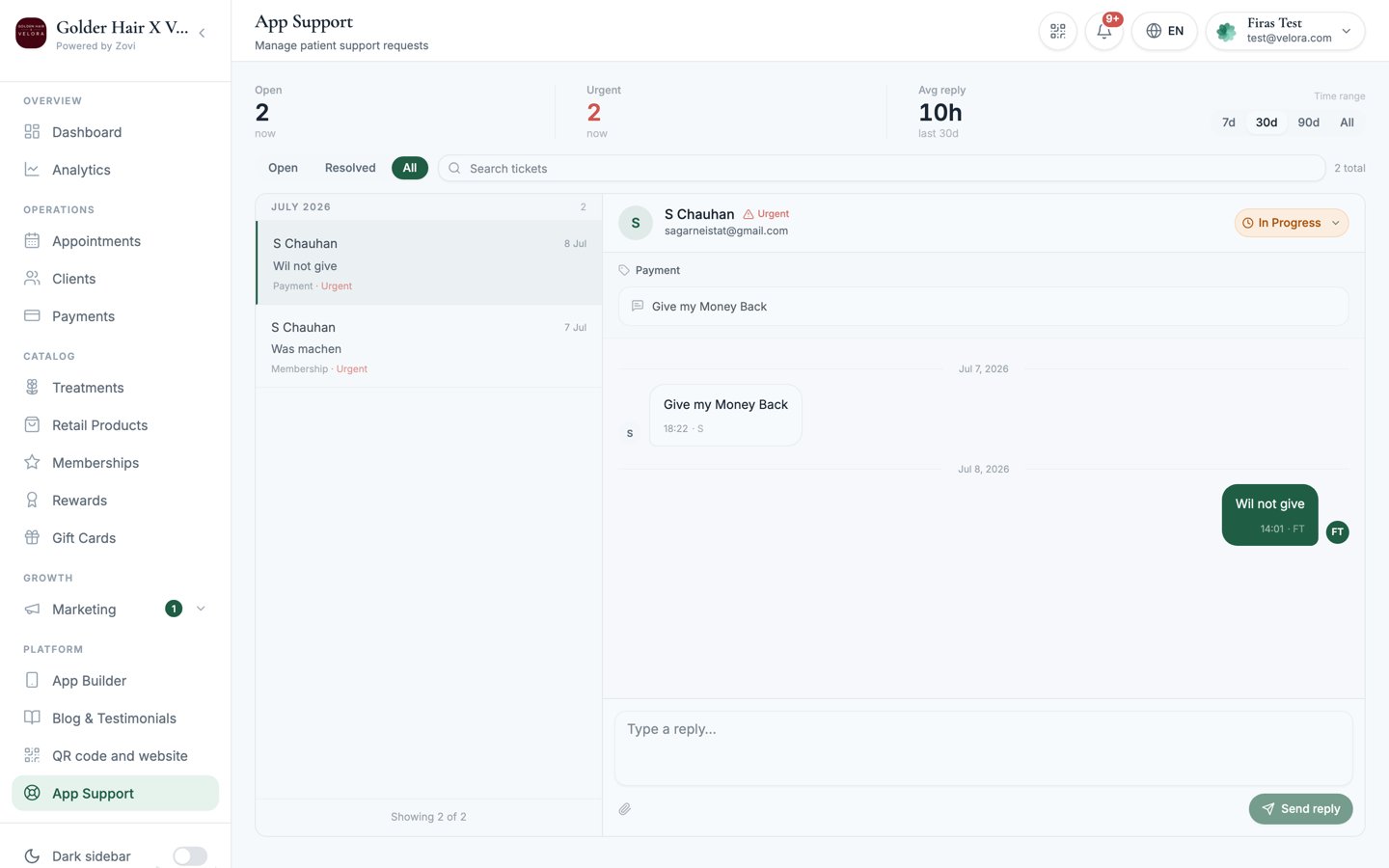
**App Support** is your inbox for the support requests **your clients** send from
the Beauty Circle App. It's a two-pane view: the list of tickets on one side, the
full conversation on the other. Open it from **App Support** in the sidebar.
This is where **clients contact your clinic**. It's the opposite direction to
[Zovi Help & Support](/help/get-help), which is where **your clinic contacts
Zovi**. Don't confuse the two: client questions land here.
App Support isn't the only place client questions surface. When
[your AI Advisor](/advisor/overview) hands a conversation over to your team, it
appears in the **AI Advisor** section tagged **Handoff**. Check both.
 ## The inbox at a glance
Across the top of the inbox are **stats** that summarise your support load:
* **Open**: how many tickets are still awaiting you.
* **Urgent**: how many need attention now.
* **Avg reply**: your average time to reply.
Change the time range for these stats between **7d**, **30d**, **90d**, and
**All**.
## Find the right ticket
Above the ticket list you can narrow things down:
* **Status filters**: show **Open**, **Resolved**, or **All** tickets.
* **Search**: find a specific ticket or client.
Each ticket is tagged with a **topic** so you can tell at a glance what it's about:
* `Booking`
* `Payment`
* `Membership`
* `App bug`
* `Reward`
* `Account`
* `Other`
## Reply to a client
Select a ticket to open the conversation on the right, then use the reply
composer.
Select it in the list to load the full conversation.
Type in the composer (*"Type a reply…"*).
Select **Send reply**, or press ⌘ ↵ to send. Your reply
goes to the client and is added to the thread.
## Resolve and reopen
When a ticket is handled, select **Resolve** to close it. It moves out of your
**Open** list. If the client writes back or the issue returns, select **Reopen**
to bring it back to active.
Keep an eye on the **Urgent** count and your **Avg reply** time. Fast, visible
responses in the Beauty Circle App are one of the simplest ways to keep clients
happy and
coming back.
## Related
When you need help from the Zovi team yourself.
Open the profile of the client you're helping.
## The inbox at a glance
Across the top of the inbox are **stats** that summarise your support load:
* **Open**: how many tickets are still awaiting you.
* **Urgent**: how many need attention now.
* **Avg reply**: your average time to reply.
Change the time range for these stats between **7d**, **30d**, **90d**, and
**All**.
## Find the right ticket
Above the ticket list you can narrow things down:
* **Status filters**: show **Open**, **Resolved**, or **All** tickets.
* **Search**: find a specific ticket or client.
Each ticket is tagged with a **topic** so you can tell at a glance what it's about:
* `Booking`
* `Payment`
* `Membership`
* `App bug`
* `Reward`
* `Account`
* `Other`
## Reply to a client
Select a ticket to open the conversation on the right, then use the reply
composer.
Select it in the list to load the full conversation.
Type in the composer (*"Type a reply…"*).
Select **Send reply**, or press ⌘ ↵ to send. Your reply
goes to the client and is added to the thread.
## Resolve and reopen
When a ticket is handled, select **Resolve** to close it. It moves out of your
**Open** list. If the client writes back or the issue returns, select **Reopen**
to bring it back to active.
Keep an eye on the **Urgent** count and your **Avg reply** time. Fast, visible
responses in the Beauty Circle App are one of the simplest ways to keep clients
happy and
coming back.
## Related
When you need help from the Zovi team yourself.
Open the profile of the client you're helping.