> ## Documentation Index
> Fetch the complete documentation index at: https://zovi.mintlify.site/llms.txt
> Use this file to discover all available pages before exploring further.
# Getting help from Zovi
> Raise a support ticket with the Zovi team, track your open requests, and find the right email and resources when you need a hand with your dashboard.
When you need help from Zovi, whether it's a technical problem, a billing
question, or a feature request, use **Zovi Help & Support**. Open it from the
account menu in the top-right of the dashboard (**Zovi Help & Support**).
This is where **your clinic contacts Zovi**. It's different from
[App Support](/help/app-support), which is where **your clients contact your
clinic**. If a client needs help with your app, handle it in App Support instead.
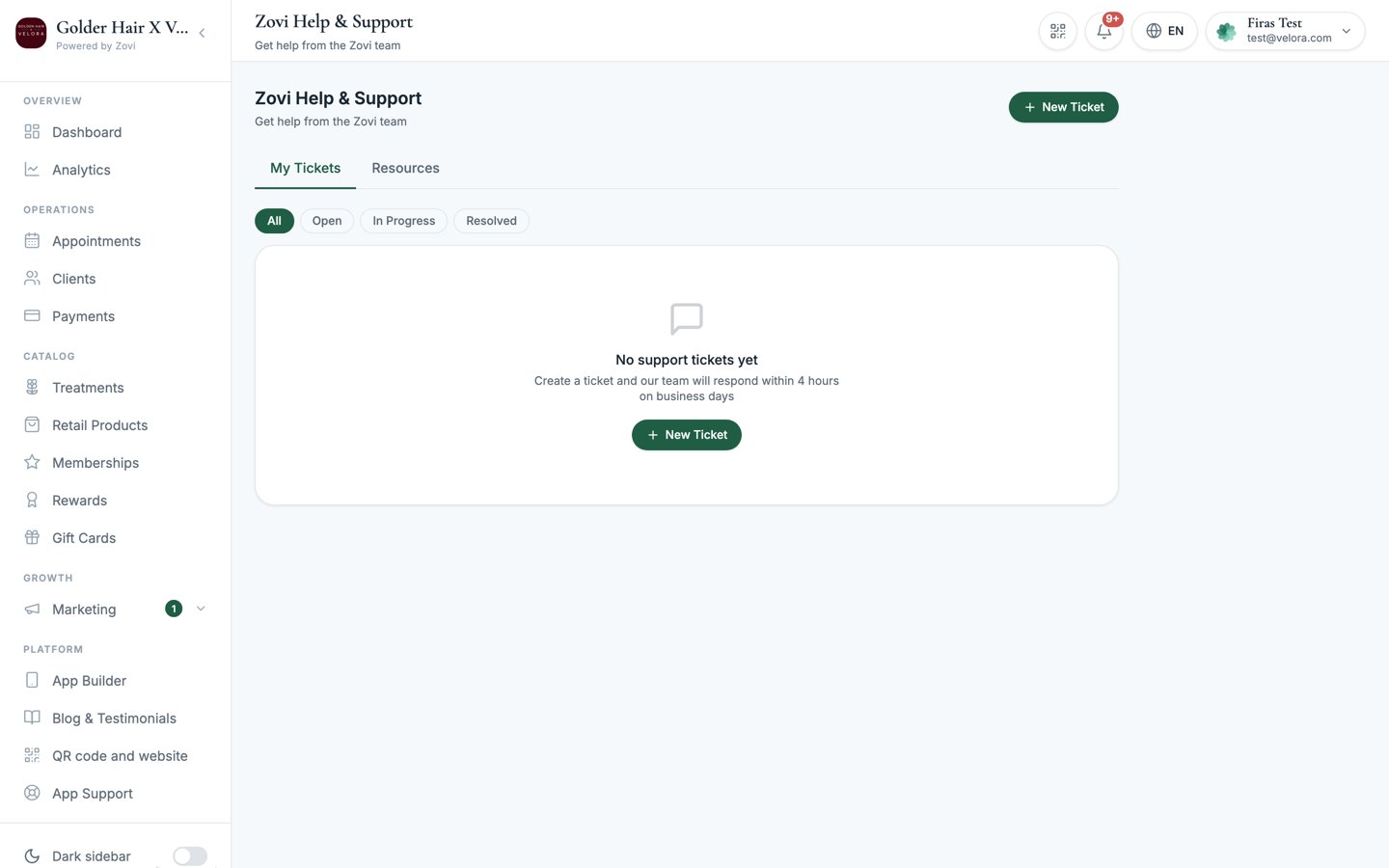 Zovi Help & Support has two tabs: **My tickets** and **Resources**.
## My tickets
**My tickets** lists every request you've raised with Zovi, so you can follow each
one to resolution. Four filter tabs narrow the list: **All**, **Open**, **In
Progress**, and **Resolved**.
A ticket itself can carry one of five statuses. **Waiting on you** and **Closed**
are genuine statuses you'll see on a ticket, but there's no filter tab for
either, so use **All** to find them.
| Status | What it means |
| ------------------ | ----------------------------------------------------------------------- |
| **Open** | You've raised it and nobody has picked it up yet. |
| **In Progress** | Someone at Zovi is working on it. |
| **Waiting on you** | Zovi has replied and needs something from you before it can go further. |
| **Resolved** | The team has answered or fixed it. |
| **Closed** | The ticket is finished and filed. |
The support team aims to respond within **4 hours** on business days.
### Raise a new ticket
Open the new-ticket form. A notice above the form asks you to check the
documentation first, in case your answer is already there. It's informational
only and never stops you submitting.
Fill in the fields:
| Field | Notes |
| --------------- | ------------------------------------------------------------------- |
| **Subject** | Required. A short summary of your request. |
| **Category** | Pick the area your request is about (see below). |
| **Priority** | How urgent it is: `Low`, `Normal`, `High`, or `Urgent`. |
| **Description** | Required. The full detail: what's happening, and what you expected. |
| **Attachments** | Optional. Add screenshots or files, each up to **10 MB**. |
Send the ticket. It appears in **My tickets**, and the Zovi team follows up.
The **Category** options are:
* `Technical issue`
* `Billing & subscription`
* `Beauty Circle App`
* `Onboarding & setup`
* `Feature request`
* `Data & compliance`
* `Other`
Add a screenshot to **Attachments** whenever you can. It's the fastest way for
support to see exactly what you're seeing and resolve your ticket sooner.
## Resources
The **Resources** tab collects the other ways to reach Zovi and help yourself:
* **Documentation**: opens this help center in a new browser tab, so your
dashboard stays open behind it. Start at the [help center home](/).
* **Tutorials & walkthroughs**: sits directly below the documentation card and
takes you to [Tutorials & walkthroughs](/tutorials), which follows a whole task
from start to finish, and to [Support & service](/support).
* **Email support**: [info@zoviapp.com](mailto:info@zoviapp.com) for general help.
* **Billing**: [info@zoviapp.com](mailto:info@zoviapp.com) for invoices and
billing questions.
* **FAQ**: quick answers to the most common questions. See the
[FAQ](/help/faq).
**Live chat** is the only resource still marked *"Coming soon"*. Everything else
on this tab works today.
## Related
What the Zovi team covers for you, and how fast you hear back.
Handle support requests coming from your clients' app.
Fast answers to common questions about running Zovi.
Zovi Help & Support has two tabs: **My tickets** and **Resources**.
## My tickets
**My tickets** lists every request you've raised with Zovi, so you can follow each
one to resolution. Four filter tabs narrow the list: **All**, **Open**, **In
Progress**, and **Resolved**.
A ticket itself can carry one of five statuses. **Waiting on you** and **Closed**
are genuine statuses you'll see on a ticket, but there's no filter tab for
either, so use **All** to find them.
| Status | What it means |
| ------------------ | ----------------------------------------------------------------------- |
| **Open** | You've raised it and nobody has picked it up yet. |
| **In Progress** | Someone at Zovi is working on it. |
| **Waiting on you** | Zovi has replied and needs something from you before it can go further. |
| **Resolved** | The team has answered or fixed it. |
| **Closed** | The ticket is finished and filed. |
The support team aims to respond within **4 hours** on business days.
### Raise a new ticket
Open the new-ticket form. A notice above the form asks you to check the
documentation first, in case your answer is already there. It's informational
only and never stops you submitting.
Fill in the fields:
| Field | Notes |
| --------------- | ------------------------------------------------------------------- |
| **Subject** | Required. A short summary of your request. |
| **Category** | Pick the area your request is about (see below). |
| **Priority** | How urgent it is: `Low`, `Normal`, `High`, or `Urgent`. |
| **Description** | Required. The full detail: what's happening, and what you expected. |
| **Attachments** | Optional. Add screenshots or files, each up to **10 MB**. |
Send the ticket. It appears in **My tickets**, and the Zovi team follows up.
The **Category** options are:
* `Technical issue`
* `Billing & subscription`
* `Beauty Circle App`
* `Onboarding & setup`
* `Feature request`
* `Data & compliance`
* `Other`
Add a screenshot to **Attachments** whenever you can. It's the fastest way for
support to see exactly what you're seeing and resolve your ticket sooner.
## Resources
The **Resources** tab collects the other ways to reach Zovi and help yourself:
* **Documentation**: opens this help center in a new browser tab, so your
dashboard stays open behind it. Start at the [help center home](/).
* **Tutorials & walkthroughs**: sits directly below the documentation card and
takes you to [Tutorials & walkthroughs](/tutorials), which follows a whole task
from start to finish, and to [Support & service](/support).
* **Email support**: [info@zoviapp.com](mailto:info@zoviapp.com) for general help.
* **Billing**: [info@zoviapp.com](mailto:info@zoviapp.com) for invoices and
billing questions.
* **FAQ**: quick answers to the most common questions. See the
[FAQ](/help/faq).
**Live chat** is the only resource still marked *"Coming soon"*. Everything else
on this tab works today.
## Related
What the Zovi team covers for you, and how fast you hear back.
Handle support requests coming from your clients' app.
Fast answers to common questions about running Zovi.