> ## Documentation Index
> Fetch the complete documentation index at: https://zovi.mintlify.site/llms.txt
> Use this file to discover all available pages before exploring further.
# Push campaigns
> Send a push notification to your clients' phones: compose it, target the right audience, and schedule it for later.
**Push Campaigns is not switched on at the moment.** Standalone push campaigns are
not part of the current release, so **Campaigns** does not appear in the sidebar.
To reach your clients today, use [Offers](/marketing/offers), which send their own
push notification when they go live, [Automatic
Offers](/marketing/templates), or the **Newsletter** tab under **Emails &
Offers**.
**Campaigns** send a **push notification** to your clients' phones. That is all a
campaign is: a message that pops up on the client's device. There is no email or SMS
here. For email, use the **Newsletter** tab under **Emails & Offers**.
You can send to all active clients or choose a specific **Audience**, add a **deep
link** into the app, and **schedule** the campaign for later.
## Compose a campaign
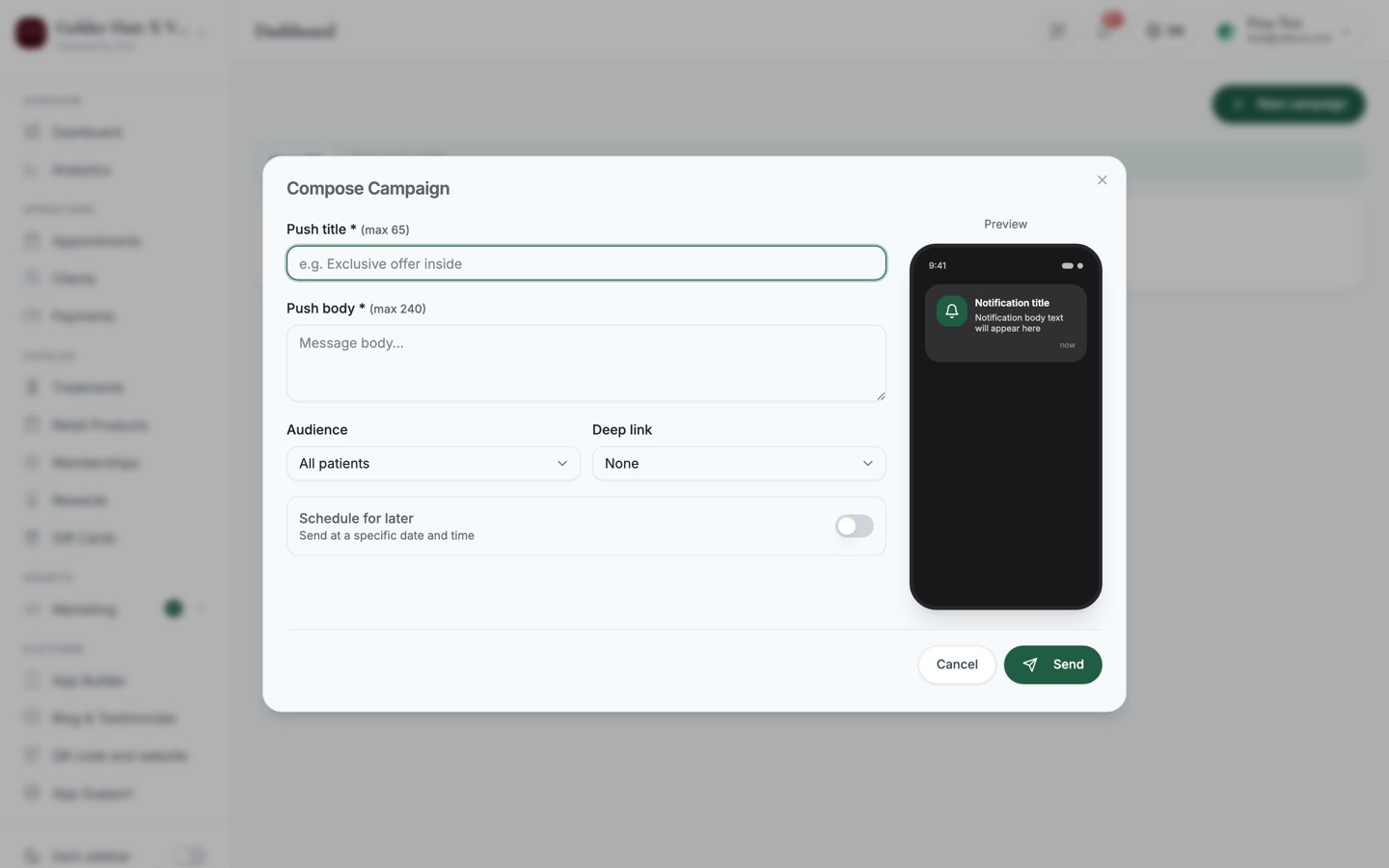
Select **New campaign** to open the **Compose Campaign** dialog.
* **Title**: required, up to **65** characters.
* **Body**: required, up to **240** characters.
A **live phone preview** on the right shows exactly how the notification will
look as you type.
Select **Send** to send now. If you turned on **Schedule for later**, the
button becomes **Scheduled** and the campaign goes out at your chosen time.
 ## Audience, deep links, and scheduling
The Compose dialog gives you three controls to fine-tune each campaign:
* **Audience**: choose who receives it:
* **All clients**
* **Members only**
* **Inactive 30+ days**
* **Inactive 60+ days**
* **Deep link**: send clients straight to a screen when they tap the notification:
**Home**, **Treatments**, **Memberships**, **Rewards**, or **Cart**.
* **Schedule for later**: toggle this on and set a **Send at** date and time
instead of sending immediately.
If you leave the audience on **All clients**, the campaign goes to everyone who
is currently active.
Campaigns are rate-limited to protect your clients from notification
fatigue: **1 campaign per minute** and **10 per day**.
## Sent, Scheduled and Drafts tabs
Campaigns are listed under three tabs:
* **Sent (N)**: the default. Every campaign that has already gone out.
* **Scheduled (N)**: campaigns queued to send later.
* **Drafts (N)**: campaigns you started but have not sent.
Each row shows reach, **open rate** and **click rate** once the campaign has gone
out. Refresh the page to pull the latest figures. Opens and clicks are counted once
per person, so a client who taps the same notification several times is still
counted once.
### Statuses
| Status | Meaning |
| ------------- | ----------------------------------------------- |
| **SENT** | Delivered. |
| **SENDING** | Currently going out. |
| **SCHEDULED** | Queued for a future time. |
| **DRAFT** | Started but not yet sent. |
| **FAILED** | Did not send. Check the campaign and try again. |
You will see a confirmation toast, **Campaign sent** or **Campaign scheduled**,
as soon as you submit.
## Related
Discount offers that appear in the app and need approval before they send.
See how campaigns fit alongside offers, automatic offers, and newsletters.
## Audience, deep links, and scheduling
The Compose dialog gives you three controls to fine-tune each campaign:
* **Audience**: choose who receives it:
* **All clients**
* **Members only**
* **Inactive 30+ days**
* **Inactive 60+ days**
* **Deep link**: send clients straight to a screen when they tap the notification:
**Home**, **Treatments**, **Memberships**, **Rewards**, or **Cart**.
* **Schedule for later**: toggle this on and set a **Send at** date and time
instead of sending immediately.
If you leave the audience on **All clients**, the campaign goes to everyone who
is currently active.
Campaigns are rate-limited to protect your clients from notification
fatigue: **1 campaign per minute** and **10 per day**.
## Sent, Scheduled and Drafts tabs
Campaigns are listed under three tabs:
* **Sent (N)**: the default. Every campaign that has already gone out.
* **Scheduled (N)**: campaigns queued to send later.
* **Drafts (N)**: campaigns you started but have not sent.
Each row shows reach, **open rate** and **click rate** once the campaign has gone
out. Refresh the page to pull the latest figures. Opens and clicks are counted once
per person, so a client who taps the same notification several times is still
counted once.
### Statuses
| Status | Meaning |
| ------------- | ----------------------------------------------- |
| **SENT** | Delivered. |
| **SENDING** | Currently going out. |
| **SCHEDULED** | Queued for a future time. |
| **DRAFT** | Started but not yet sent. |
| **FAILED** | Did not send. Check the campaign and try again. |
You will see a confirmation toast, **Campaign sent** or **Campaign scheduled**,
as soon as you submit.
## Related
Discount offers that appear in the app and need approval before they send.
See how campaigns fit alongside offers, automatic offers, and newsletters.