> ## Documentation Index
> Fetch the complete documentation index at: https://zovi.mintlify.site/llms.txt
> Use this file to discover all available pages before exploring further.
# Offers, promotions & promo codes
> Approve suggested offers, create time-limited promotions and shareable promo codes, and track everything that's live or expired.
**Offers** is where you approve, create, and track everything promotional. It opens
on the **Approvals** inbox, the queue of suggested offers waiting for your decision,
and has four tabs: **Approvals**, **Live Offers**, **Offer History**, and
**Automatic Offers**. Everything to do with offers sits in one place.
The Offers suite covers offers, flash deals, scratch cards, and promo codes, all
in one place.
## The Approvals inbox
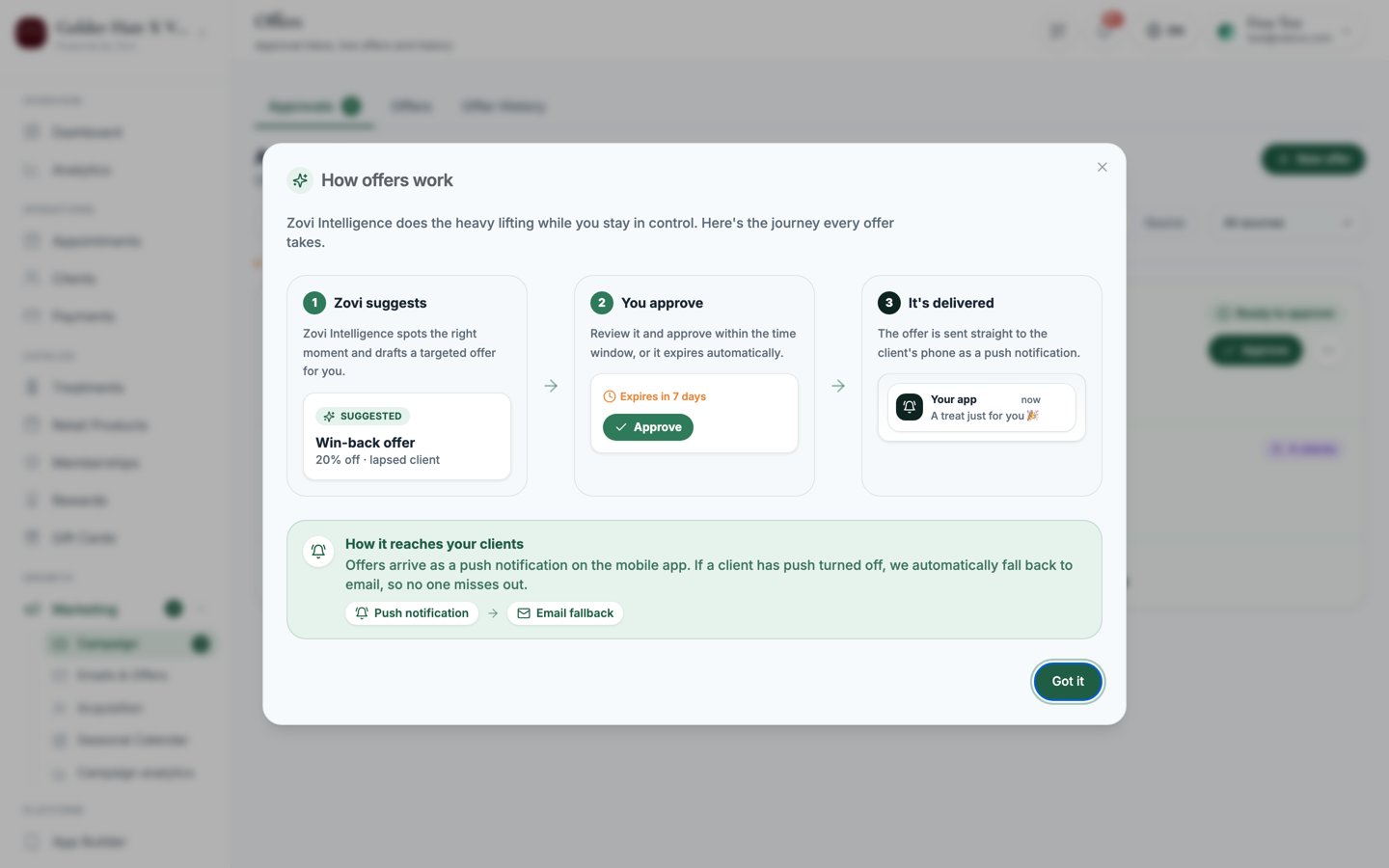
Nothing reaches a client until you approve it. Offers are proposed from several
sources and land here for your review.
 ### Where offers come from
Each card shows a **source** badge so you know what proposed it:
| Source | What proposed it |
| ------------------------------ | ----------------------------------------------- |
| **Manual** | An offer you started yourself. |
| **Zovi Intelligence** | The Smart Offers AI. Shown with a purple badge. |
| **Win-back** | A client who's slipping away. |
| **Lapsed member** | A member who's gone quiet. |
| **Stagnation** | A client who's stalled after a good start. |
| **Seasonal** | A seasonal moment worth marking. |
| **Birthday** / **Anniversary** | A client milestone. |
**Zovi Intelligence** needs about a 14-day warming period before it starts
suggesting offers. Its suggestions always stay within your guardrails.
### Read a card before you approve
Every card is designed to be approved in seconds:
* **Why this fired**: a plain-language reason the offer was proposed.
* **"Within guard rails · max {pct}% / €{eur}"**: a chip confirming the discount
stays inside the limits set in your [Loyalty
Engine](/settings/loyalty-engine).
* **Conflict box**: if the offer overlaps another one for the same client, you're
told how it resolves. The rule is simple: a **targeted offer wins** over a
broader one.
### Group the queue
Use the grouping control at the top to sort the queue:
* **Urgency**: buckets of **Needs you now**, **This week**, and **Scheduled**.
* **Source**: grouped by where each offer came from.
### Approve or reject
Read **Why this fired** and check the **Within guard rails** chip. Use
**Preview** to see exactly what the client would get.
Select **Approve** on a single card. To clear the queue faster, use **Approve
all (N)**, or tick several cards and choose **Approve selected**.
Select **Reject** and add a short reason. The offer never reaches the client.
Use **Edit & approve** to change a headline, discount, or audience first, then
approve the edited version.
When the queue is empty you'll see **All caught up**, with nothing waiting on you.
## Live Offers
The **Live Offers** tab shows every offer currently running. For each one you get
live metrics (**Impressions**, **Redemptions**, **Conversion %**, and **Revenue**),
plus a **vs target** bar so you can see how it's tracking.
Use **View** to inspect an offer, **Duplicate** to reuse it as a starting point,
and **End now** to stop an offer immediately before its scheduled end.
## Offer History
The **Offer History** tab is the record of everything that's finished. It's a table
of **Offer**, **Source**, **Audience**, **Status**, **Redemptions**, **Revenue**,
and **Date**. Statuses include **Ended early**, **Expired**, and **Rejected**. Use
**Export CSV** to download the history for your own reporting.
## Create an offer
From the Approvals inbox, start a new offer and choose one of two types:
A time-limited offer that appears in the app, a flash deal or a scratch card.
A code clients apply at checkout or type in, great for sharing on social or
with partners.
## Create a promotion
A **promotion** is a time-limited offer surfaced inside the client app.
Pick how the client uncovers the offer:
* **Tap to reveal**: the client taps to see it.
* **Scratch to reveal**: the "One-time Offer" scratch-card experience.
* **Promotion headline** becomes the push notification title.
* **Promotion message** is the body shown in the app and in the push.
Both are bilingual, so fill in **English** and **Deutsch**. The client app shows
each client the copy for their language.
Choose **Percentage off** or **Amount off** and enter the value. The value is
**capped by your guardrails**, so you can't exceed the maximum discount set in
the [Loyalty Engine](/settings/loyalty-engine).
Set the **Duration** in days (default `3`). Choose a **Start date**, or leave it
empty to start immediately.
Decide who sees it:
| Audience | Who it reaches |
| -------------------- | --------------------------------------- |
| **All clients** | Everyone with your app. |
| **Segment** | A rule-based group (see below). |
| **Specific clients** | People you search for and pick by name. |
A **Segment** combines: membership status (`Any` / `Members` / `Non-members`),
inactivity (**inactive since 30 / 60 / 90+ days**), and a minimum lifetime
**spend €**.
Set the eligible **treatments** using the **Included** / **Excluded** tabs (all
treatments by default), and include **retail products** if you want the discount
to cover products too.
* Turn on **One-time per client** so each client can redeem it only once.
* Choose the channels: **Show as banner in app** (a card on the home screen)
and **Send push notification on launch**.
Select create. If the promotion conflicts with another live offer you'll see a
warning, so choose **Create anyway** to proceed. You'll see an **Offer created**
confirmation.
Promotions reach clients through the **app banner** and **push notification**
only. There's no SMS. For email, use the **Newsletter** tab in **Emails & Offers**.
## Create a promo code
A **promo code** is a code clients apply at checkout or type in themselves, useful
for sharing on Instagram or with partners.
Enter the **promo code** text (for example, `SUMMER20`). Choose **Percentage
off** or **Amount off** and enter the value. For a percentage code, set a **Max
discount cap €** so a large order can't run away.
* **Min cart value €**: the smallest order the code applies to.
* **Total redemption limit**: how many times it can be used overall (default
`100`).
* **Max uses per client**: how many times one client can use it.
Set **Expiry** in days, or choose **Never**. Then pick the audience (**All**,
**Segment**, or **Specific** clients) the same way as a promotion.
Set the eligible **treatments** for the code.
Pick **at least one** delivery method:
* **Show in app checkout**: clients tap to apply it during checkout.
* **Requires code entry**: clients type the code in for Instagram or partner
sharing.
A code that is **neither** shown in the app **nor** typed in can never be used, so
you must choose at least one delivery method.
## Send an offer to a single client
You don't have to start from the inbox. From a **client profile** you can select
**Send Offer** or **Send Win-Back Offer** (also available from the client list). It
opens the create flow already targeted to that person as a **Specific clients**
audience. See [Client offers & rewards](/clients/offers-and-rewards).
## Related
Birthday, Anniversary, and Lapsed Member offers that fire without per-offer
approval.
Owners set the maximum discount, automated discount amount, and monthly budget.
### Where offers come from
Each card shows a **source** badge so you know what proposed it:
| Source | What proposed it |
| ------------------------------ | ----------------------------------------------- |
| **Manual** | An offer you started yourself. |
| **Zovi Intelligence** | The Smart Offers AI. Shown with a purple badge. |
| **Win-back** | A client who's slipping away. |
| **Lapsed member** | A member who's gone quiet. |
| **Stagnation** | A client who's stalled after a good start. |
| **Seasonal** | A seasonal moment worth marking. |
| **Birthday** / **Anniversary** | A client milestone. |
**Zovi Intelligence** needs about a 14-day warming period before it starts
suggesting offers. Its suggestions always stay within your guardrails.
### Read a card before you approve
Every card is designed to be approved in seconds:
* **Why this fired**: a plain-language reason the offer was proposed.
* **"Within guard rails · max {pct}% / €{eur}"**: a chip confirming the discount
stays inside the limits set in your [Loyalty
Engine](/settings/loyalty-engine).
* **Conflict box**: if the offer overlaps another one for the same client, you're
told how it resolves. The rule is simple: a **targeted offer wins** over a
broader one.
### Group the queue
Use the grouping control at the top to sort the queue:
* **Urgency**: buckets of **Needs you now**, **This week**, and **Scheduled**.
* **Source**: grouped by where each offer came from.
### Approve or reject
Read **Why this fired** and check the **Within guard rails** chip. Use
**Preview** to see exactly what the client would get.
Select **Approve** on a single card. To clear the queue faster, use **Approve
all (N)**, or tick several cards and choose **Approve selected**.
Select **Reject** and add a short reason. The offer never reaches the client.
Use **Edit & approve** to change a headline, discount, or audience first, then
approve the edited version.
When the queue is empty you'll see **All caught up**, with nothing waiting on you.
## Live Offers
The **Live Offers** tab shows every offer currently running. For each one you get
live metrics (**Impressions**, **Redemptions**, **Conversion %**, and **Revenue**),
plus a **vs target** bar so you can see how it's tracking.
Use **View** to inspect an offer, **Duplicate** to reuse it as a starting point,
and **End now** to stop an offer immediately before its scheduled end.
## Offer History
The **Offer History** tab is the record of everything that's finished. It's a table
of **Offer**, **Source**, **Audience**, **Status**, **Redemptions**, **Revenue**,
and **Date**. Statuses include **Ended early**, **Expired**, and **Rejected**. Use
**Export CSV** to download the history for your own reporting.
## Create an offer
From the Approvals inbox, start a new offer and choose one of two types:
A time-limited offer that appears in the app, a flash deal or a scratch card.
A code clients apply at checkout or type in, great for sharing on social or
with partners.
## Create a promotion
A **promotion** is a time-limited offer surfaced inside the client app.
Pick how the client uncovers the offer:
* **Tap to reveal**: the client taps to see it.
* **Scratch to reveal**: the "One-time Offer" scratch-card experience.
* **Promotion headline** becomes the push notification title.
* **Promotion message** is the body shown in the app and in the push.
Both are bilingual, so fill in **English** and **Deutsch**. The client app shows
each client the copy for their language.
Choose **Percentage off** or **Amount off** and enter the value. The value is
**capped by your guardrails**, so you can't exceed the maximum discount set in
the [Loyalty Engine](/settings/loyalty-engine).
Set the **Duration** in days (default `3`). Choose a **Start date**, or leave it
empty to start immediately.
Decide who sees it:
| Audience | Who it reaches |
| -------------------- | --------------------------------------- |
| **All clients** | Everyone with your app. |
| **Segment** | A rule-based group (see below). |
| **Specific clients** | People you search for and pick by name. |
A **Segment** combines: membership status (`Any` / `Members` / `Non-members`),
inactivity (**inactive since 30 / 60 / 90+ days**), and a minimum lifetime
**spend €**.
Set the eligible **treatments** using the **Included** / **Excluded** tabs (all
treatments by default), and include **retail products** if you want the discount
to cover products too.
* Turn on **One-time per client** so each client can redeem it only once.
* Choose the channels: **Show as banner in app** (a card on the home screen)
and **Send push notification on launch**.
Select create. If the promotion conflicts with another live offer you'll see a
warning, so choose **Create anyway** to proceed. You'll see an **Offer created**
confirmation.
Promotions reach clients through the **app banner** and **push notification**
only. There's no SMS. For email, use the **Newsletter** tab in **Emails & Offers**.
## Create a promo code
A **promo code** is a code clients apply at checkout or type in themselves, useful
for sharing on Instagram or with partners.
Enter the **promo code** text (for example, `SUMMER20`). Choose **Percentage
off** or **Amount off** and enter the value. For a percentage code, set a **Max
discount cap €** so a large order can't run away.
* **Min cart value €**: the smallest order the code applies to.
* **Total redemption limit**: how many times it can be used overall (default
`100`).
* **Max uses per client**: how many times one client can use it.
Set **Expiry** in days, or choose **Never**. Then pick the audience (**All**,
**Segment**, or **Specific** clients) the same way as a promotion.
Set the eligible **treatments** for the code.
Pick **at least one** delivery method:
* **Show in app checkout**: clients tap to apply it during checkout.
* **Requires code entry**: clients type the code in for Instagram or partner
sharing.
A code that is **neither** shown in the app **nor** typed in can never be used, so
you must choose at least one delivery method.
## Send an offer to a single client
You don't have to start from the inbox. From a **client profile** you can select
**Send Offer** or **Send Win-Back Offer** (also available from the client list). It
opens the create flow already targeted to that person as a **Specific clients**
audience. See [Client offers & rewards](/clients/offers-and-rewards).
## Related
Birthday, Anniversary, and Lapsed Member offers that fire without per-offer
approval.
Owners set the maximum discount, automated discount amount, and monthly budget.