> ## Documentation Index
> Fetch the complete documentation index at: https://zovi.mintlify.site/llms.txt
> Use this file to discover all available pages before exploring further.
# Marketing overview
> Your hub for offers, promotions, promo codes, emails, and seasonal moments, plus the approval inbox that keeps everything on-brand.
Marketing is where you grow. From here you create **offers**, **promotions**, and
**promo codes**, set up **Automatic Offers** that run on their own, and email your
clients from the **Newsletter** composer. Everything you send is either reviewed by
you first or set up once and left to run, so nothing reaches a client by accident.
The **Offers** suite (offers, flash deals, scratch cards, and promo codes) is
available to your clinic. There is nothing extra to switch on.
## What's in Marketing
The **Marketing** section groups several areas. Where you start depends on what you
want to do.
| Area | What it's for |
| ---------------------- | ---------------------------------------------------------------------------------------------------------- |
| **Offers** | The approval inbox, live offers, offer history, and the Automatic Offers that run on their own. |
| **Emails & Offers** | Your branded email layouts, plus the **Newsletter** composer for broadcasts to your clients. |
| **Acquisition** | Import your existing client list and invite them into your app, then track who opened, clicked and joined. |
| **Seasonal Calendar** | Seasonal moments you switch on once, which then run every year on schedule. |
| **Campaign analytics** | How your offers performed: impressions, redemptions, conversion and revenue. |
Two more growth areas sit directly in the sidebar rather than under Marketing,
because they have their own access permissions:
* **[Referrals](/marketing/referrals)**: your clients invite friends by link, and
both sides are rewarded when the friend pays for a first order.
* **Deliverability**: your email sending domain, its warm-up, and your sending
reputation.
Approve suggested offers, create promotions and promo codes, and track what's
live.
Set up Birthday, Anniversary, and Lapsed Member offers that run on their own.
Let clients invite friends, and reward both sides when the friend turns up and
pays.
## The approval inbox: nothing goes out until you approve it
The most important idea in Marketing is the **approval inbox**. Offers can be
suggested from many sources, including **Zovi Intelligence**, the Smart Offers AI,
but a suggestion is only ever a proposal. **No offer reaches a client until you
approve it.**
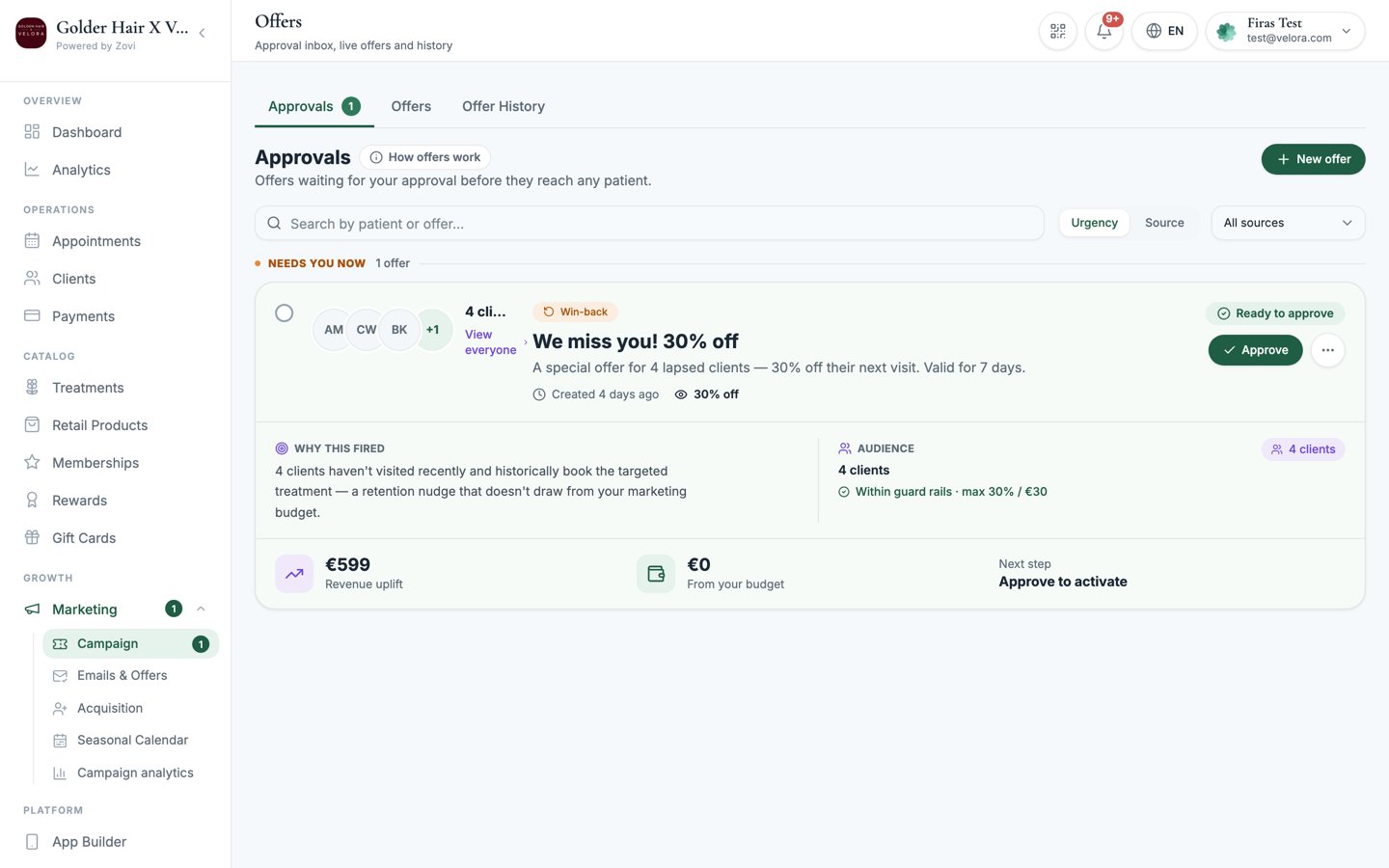 Each pending offer arrives as a card that tells you where it came from, why it
fired, and whether it sits inside your discount limits. You can **Approve**,
**Reject**, or edit it before approving. You review the queue on your own schedule.
Until then, clients see nothing.
The one exception is **Automatic Offers**. Once you switch one on, it fires
without a per-offer approval each time. That's the trade-off for setting them up
once. See [Automatic offers](/marketing/templates).
## Discounts are capped by your guardrails
Every offer, promotion, and promo code you create is capped by the limits set in
your **Loyalty Engine**: your maximum discount percentage, maximum automated
discount amount, and monthly offer budget. This is why suggested offers show a
**"Within guard rails"** chip in the approval inbox: it confirms the discount stays
inside the limits you set.
Discount limits are configured in [Settings, then Loyalty
Engine](/settings/loyalty-engine), which is **owner-only**. If an offer needs a
bigger discount than your guardrails allow, an owner has to raise the limit
first.
## Smart Offers with Zovi Intelligence
**Zovi Intelligence** watches your clinic's activity and suggests offers for you to
approve: win-backs for lapsed clients, nudges for clients who've stalled, and more.
Suggestions land in the approval inbox with a purple badge and always stay within
your guardrails.
**Zovi Intelligence** needs a warming period of about 14 days before it starts
suggesting offers, so it can learn your clinic's patterns.
## Text messages come from your clinic
When your clinic sends a text message, whether that's a verification code during
sign-up or a marketing message, it arrives under **your own brand name** rather than
an unfamiliar number. There is nothing to set up. The name comes from your clinic
brand name automatically, shortened to letters and numbers only, up to 11
characters, so "Bellevue Clinic" arrives as "BellevueCl".
This works in Germany today with no setup. In Switzerland, mobile networks do not
support sender names, so Swiss clients see a plain number instead and nothing can
change that. In Austria, sender names have to be pre-registered with the networks,
which takes several weeks, so until that is in place Austrian clients also see a
plain number. Messages still arrive normally either way.
## Where to go next
Walk through building a promotion or a promo code.
Target a single client from their profile.
Each pending offer arrives as a card that tells you where it came from, why it
fired, and whether it sits inside your discount limits. You can **Approve**,
**Reject**, or edit it before approving. You review the queue on your own schedule.
Until then, clients see nothing.
The one exception is **Automatic Offers**. Once you switch one on, it fires
without a per-offer approval each time. That's the trade-off for setting them up
once. See [Automatic offers](/marketing/templates).
## Discounts are capped by your guardrails
Every offer, promotion, and promo code you create is capped by the limits set in
your **Loyalty Engine**: your maximum discount percentage, maximum automated
discount amount, and monthly offer budget. This is why suggested offers show a
**"Within guard rails"** chip in the approval inbox: it confirms the discount stays
inside the limits you set.
Discount limits are configured in [Settings, then Loyalty
Engine](/settings/loyalty-engine), which is **owner-only**. If an offer needs a
bigger discount than your guardrails allow, an owner has to raise the limit
first.
## Smart Offers with Zovi Intelligence
**Zovi Intelligence** watches your clinic's activity and suggests offers for you to
approve: win-backs for lapsed clients, nudges for clients who've stalled, and more.
Suggestions land in the approval inbox with a purple badge and always stay within
your guardrails.
**Zovi Intelligence** needs a warming period of about 14 days before it starts
suggesting offers, so it can learn your clinic's patterns.
## Text messages come from your clinic
When your clinic sends a text message, whether that's a verification code during
sign-up or a marketing message, it arrives under **your own brand name** rather than
an unfamiliar number. There is nothing to set up. The name comes from your clinic
brand name automatically, shortened to letters and numbers only, up to 11
characters, so "Bellevue Clinic" arrives as "BellevueCl".
This works in Germany today with no setup. In Switzerland, mobile networks do not
support sender names, so Swiss clients see a plain number instead and nothing can
change that. In Austria, sender names have to be pre-registered with the networks,
which takes several weeks, so until that is in place Austrian clients also see a
plain number. Messages still arrive normally either way.
## Where to go next
Walk through building a promotion or a promo code.
Target a single client from their profile.