> ## Documentation Index
> Fetch the complete documentation index at: https://zovi.mintlify.site/llms.txt
> Use this file to discover all available pages before exploring further.
# Your profile
> Manage your personal account: add a profile photo, change your password, switch the dashboard language, and check your clinic's timezone.
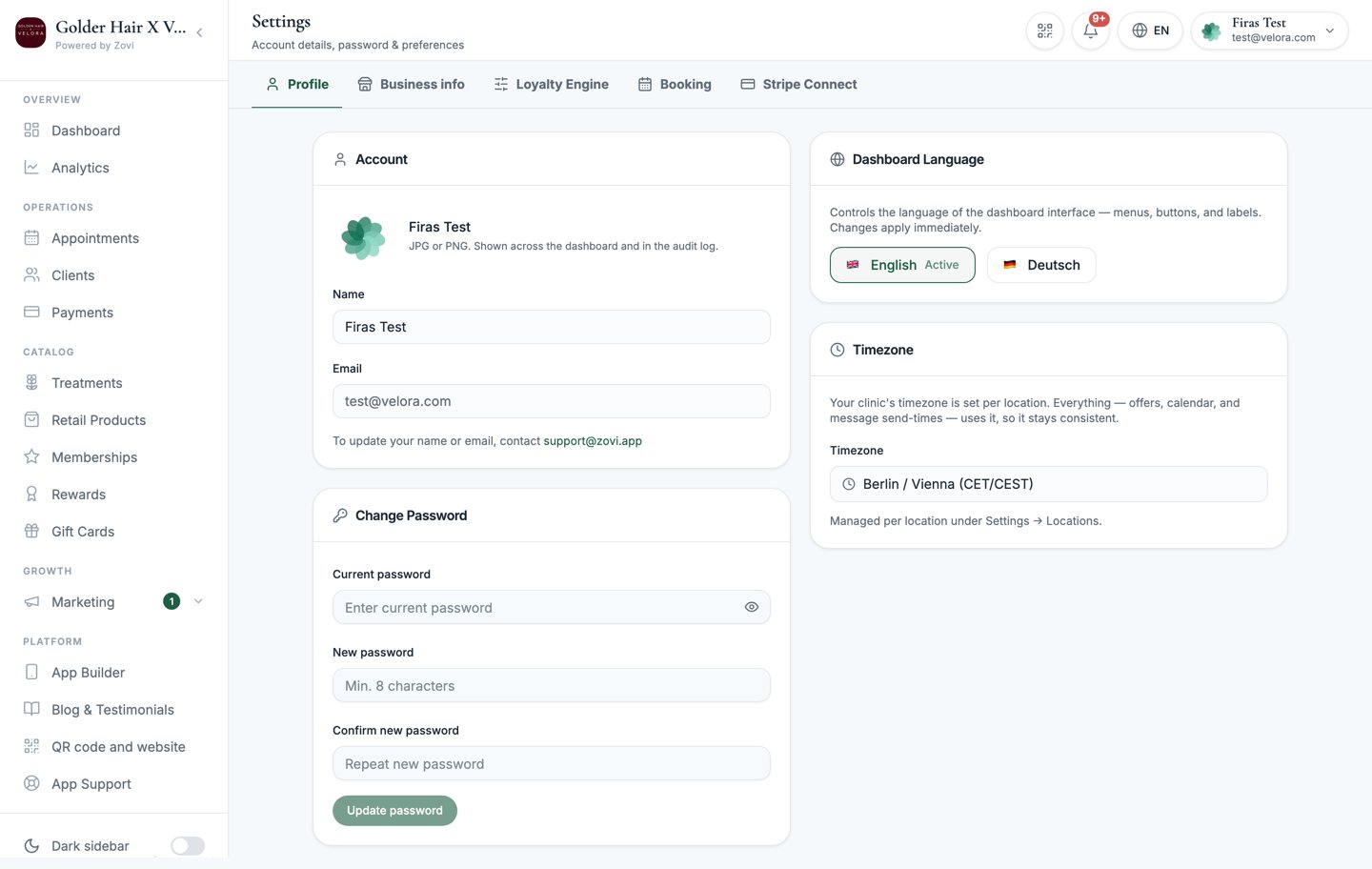
**Profile** is your personal account settings. Open **Settings** from the account
menu in the top-right (it lands on **Profile**), or select **Profile** in the
settings tab strip. Everything here affects your own login only, not your clinic
or your teammates.
 ## Your profile photo
Select the small **camera icon** on your avatar at the top of the page to upload
a **JPG** or **PNG** picture of yourself.
Your photo appears next to your name across the dashboard and in the audit log,
so colleagues can see at a glance who did what.
## Your name and email
Your **Name** and **Email** are shown at the top of the page but are **read-only**,
so you can't edit them here.
To change your name or email, contact Zovi support at
[info@zoviapp.com](mailto:info@zoviapp.com). These details are tied to your login,
so they're changed for you rather than self-service.
## Change your password
Use the **Change Password** card to set a new password. You'll need your current
one to confirm it's really you.
Type the password you sign in with today.
Choose a new password of **at least 8 characters**.
Re-type the new password so it matches exactly.
Select **Update password**. You'll stay signed in on this device with your new
password active.
Can't remember your current password? Sign out and use **Forgot password?** on
the sign-in page to set a new one by email.
## Dashboard language
Set the language the **dashboard** displays in with the **Dashboard Language**
control. You can choose:
* **English**
* **Deutsch**
Changing the language **reloads the dashboard** so everything re-renders in your
chosen language. Save any in-progress work first.
This setting only changes *your* dashboard. It doesn't affect what language your
clients see in the app, which is controlled separately in
[App Builder](/app-builder/overview).
## Timezone
The **Timezone** card is **read-only**. It shows the timezone your clinic runs
on, taken from your locations:
* One location: a single line with that location's timezone.
* Several locations: one line per location, so you can see them side by side.
* No locations yet: the card says so and prompts you to add one.
To change a timezone, edit the location itself in
[Business info](/settings/business-info).
Everything runs on the clinic timezone: offers, the calendar, and message send
times. That keeps times consistent for you, your team, and your clients rather
than shifting per person.
## Related
Your clinic's contact details, currency, and locations.
Review when Zovi support has accessed your dashboard.
## Your profile photo
Select the small **camera icon** on your avatar at the top of the page to upload
a **JPG** or **PNG** picture of yourself.
Your photo appears next to your name across the dashboard and in the audit log,
so colleagues can see at a glance who did what.
## Your name and email
Your **Name** and **Email** are shown at the top of the page but are **read-only**,
so you can't edit them here.
To change your name or email, contact Zovi support at
[info@zoviapp.com](mailto:info@zoviapp.com). These details are tied to your login,
so they're changed for you rather than self-service.
## Change your password
Use the **Change Password** card to set a new password. You'll need your current
one to confirm it's really you.
Type the password you sign in with today.
Choose a new password of **at least 8 characters**.
Re-type the new password so it matches exactly.
Select **Update password**. You'll stay signed in on this device with your new
password active.
Can't remember your current password? Sign out and use **Forgot password?** on
the sign-in page to set a new one by email.
## Dashboard language
Set the language the **dashboard** displays in with the **Dashboard Language**
control. You can choose:
* **English**
* **Deutsch**
Changing the language **reloads the dashboard** so everything re-renders in your
chosen language. Save any in-progress work first.
This setting only changes *your* dashboard. It doesn't affect what language your
clients see in the app, which is controlled separately in
[App Builder](/app-builder/overview).
## Timezone
The **Timezone** card is **read-only**. It shows the timezone your clinic runs
on, taken from your locations:
* One location: a single line with that location's timezone.
* Several locations: one line per location, so you can see them side by side.
* No locations yet: the card says so and prompts you to add one.
To change a timezone, edit the location itself in
[Business info](/settings/business-info).
Everything runs on the clinic timezone: offers, the calendar, and message send
times. That keeps times consistent for you, your team, and your clients rather
than shifting per person.
## Related
Your clinic's contact details, currency, and locations.
Review when Zovi support has accessed your dashboard.