> ## Documentation Index
> Fetch the complete documentation index at: https://zovi.mintlify.site/llms.txt
> Use this file to discover all available pages before exploring further.
# Security & access log
> Protect your login with two-factor authentication, and review a read-only history of every time Zovi support accessed your dashboard.
**Security** covers two things: **Two-Factor Authentication**, which adds an
emailed code to your sign-in, and a read-only **Access History**, a record of any
time Zovi support signed into your dashboard to help you. Open it from
**Security**, which you reach from the account menu in the top-right of the
dashboard.
 ## Two-factor authentication
The **Two-Factor Authentication** card sits at the top of the page, above the
Access History. Turn it on and Zovi emails a **6-digit code** to your address to
confirm it's really you when you sign in. Someone who knows your password still
can't get in without the code.
Open **Security** and switch on **Two-Factor Authentication**.
Pick how often Zovi should ask for a code:
| Option | What it means |
| ----------------------------- | ----------------------------------------------------- |
| **Every time I sign in** | A code on every single sign-in. The strictest choice. |
| **Once a day** | One code per day on this device. |
| **Once a week (recommended)** | One code per week. A good balance for most clinics. |
| **Once every two weeks** | One code every two weeks. |
| **Once a month** | One code a month. The lightest choice. |
Your choice applies from your next sign-in.
### Signing in with two-factor on
With two-factor on, signing in has one extra step:
Zovi then asks you to check your email.
Open the email from Zovi and type the code into the sign-in screen.
**Resend code** sends a fresh one. There's a **45-second** cooldown before you
can ask again, and the button counts down so you can see when it's ready. The
same screen has a link to use a different account if you signed in with the
wrong email.
If two-factor is off, the dashboard shows a **Secure your account** banner
inviting you to switch it on. Select **Set up** and a pop-up opens with its own
frequency dropdown and an **Enable two-factor authentication** button, so you
can turn it on without leaving the page you're on. **Remind me later** inside
that pop-up puts it off for now, and **Dismiss** on the banner itself hides the
prompt.
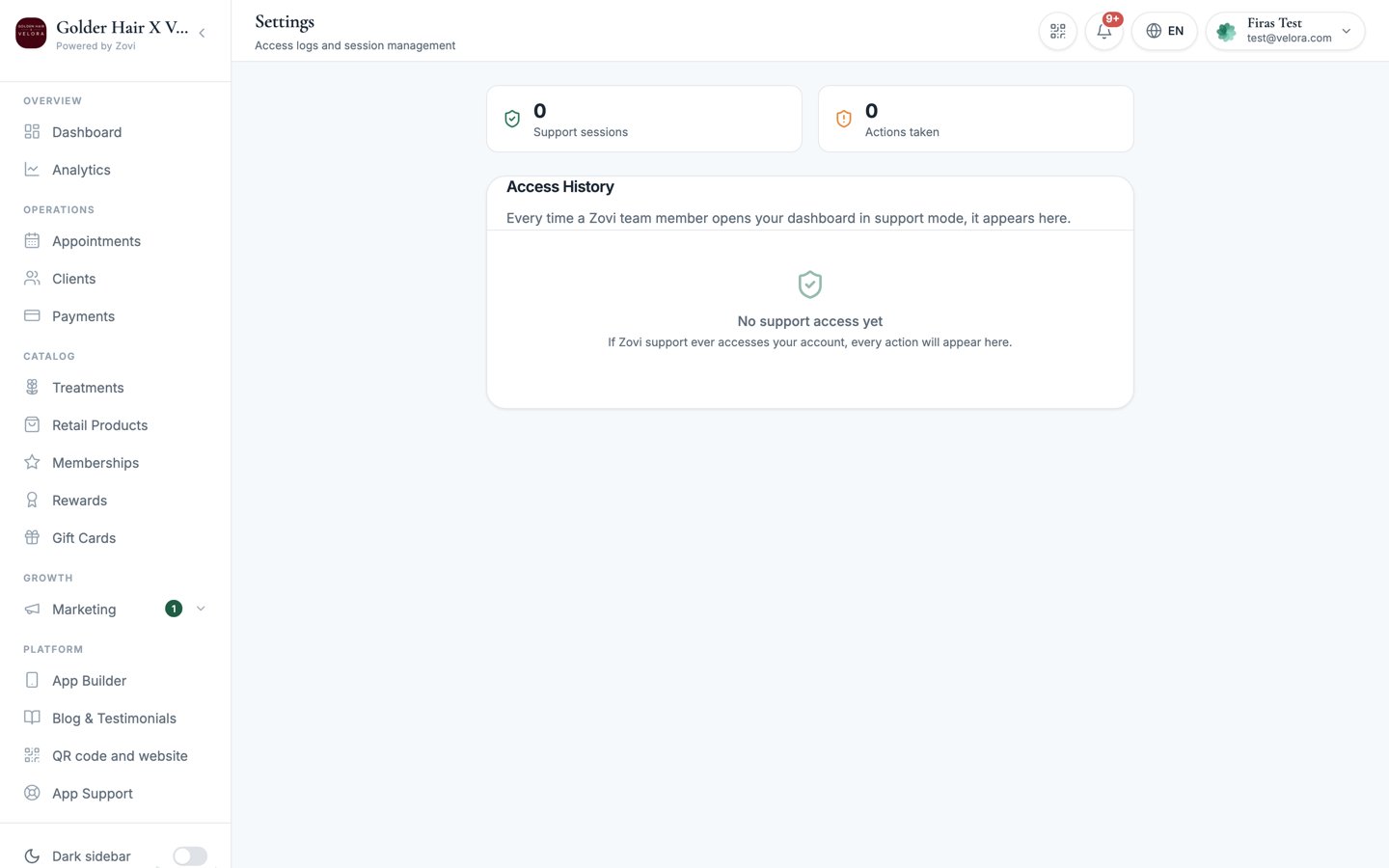
## What Access History shows
Sometimes Zovi support needs to look at your dashboard to resolve a ticket.
This is called a **support session** (or *support mode*). Every one of those
sessions is logged here so nothing happens behind your back.
Each entry records:
* **Support sessions**: when a Zovi support agent accessed your dashboard, and
for how long.
* **Actions taken**: what the agent did during the session, if anything.
* **View only**: a badge marking sessions where support could *look* but made no
changes.
**Access History** is **read-only**. It's an audit trail you review, not
something you edit or configure. There's nothing to turn on or off in this
section.
If you see a session you don't recognise or have questions about anything in the
log, contact Zovi at [info@zoviapp.com](mailto:info@zoviapp.com).
## Related
Change your password and personal preferences.
Raise a ticket if you have a security question.
## Two-factor authentication
The **Two-Factor Authentication** card sits at the top of the page, above the
Access History. Turn it on and Zovi emails a **6-digit code** to your address to
confirm it's really you when you sign in. Someone who knows your password still
can't get in without the code.
Open **Security** and switch on **Two-Factor Authentication**.
Pick how often Zovi should ask for a code:
| Option | What it means |
| ----------------------------- | ----------------------------------------------------- |
| **Every time I sign in** | A code on every single sign-in. The strictest choice. |
| **Once a day** | One code per day on this device. |
| **Once a week (recommended)** | One code per week. A good balance for most clinics. |
| **Once every two weeks** | One code every two weeks. |
| **Once a month** | One code a month. The lightest choice. |
Your choice applies from your next sign-in.
### Signing in with two-factor on
With two-factor on, signing in has one extra step:
Zovi then asks you to check your email.
Open the email from Zovi and type the code into the sign-in screen.
**Resend code** sends a fresh one. There's a **45-second** cooldown before you
can ask again, and the button counts down so you can see when it's ready. The
same screen has a link to use a different account if you signed in with the
wrong email.
If two-factor is off, the dashboard shows a **Secure your account** banner
inviting you to switch it on. Select **Set up** and a pop-up opens with its own
frequency dropdown and an **Enable two-factor authentication** button, so you
can turn it on without leaving the page you're on. **Remind me later** inside
that pop-up puts it off for now, and **Dismiss** on the banner itself hides the
prompt.
## What Access History shows
Sometimes Zovi support needs to look at your dashboard to resolve a ticket.
This is called a **support session** (or *support mode*). Every one of those
sessions is logged here so nothing happens behind your back.
Each entry records:
* **Support sessions**: when a Zovi support agent accessed your dashboard, and
for how long.
* **Actions taken**: what the agent did during the session, if anything.
* **View only**: a badge marking sessions where support could *look* but made no
changes.
**Access History** is **read-only**. It's an audit trail you review, not
something you edit or configure. There's nothing to turn on or off in this
section.
If you see a session you don't recognise or have questions about anything in the
log, contact Zovi at [info@zoviapp.com](mailto:info@zoviapp.com).
## Related
Change your password and personal preferences.
Raise a ticket if you have a security question.