

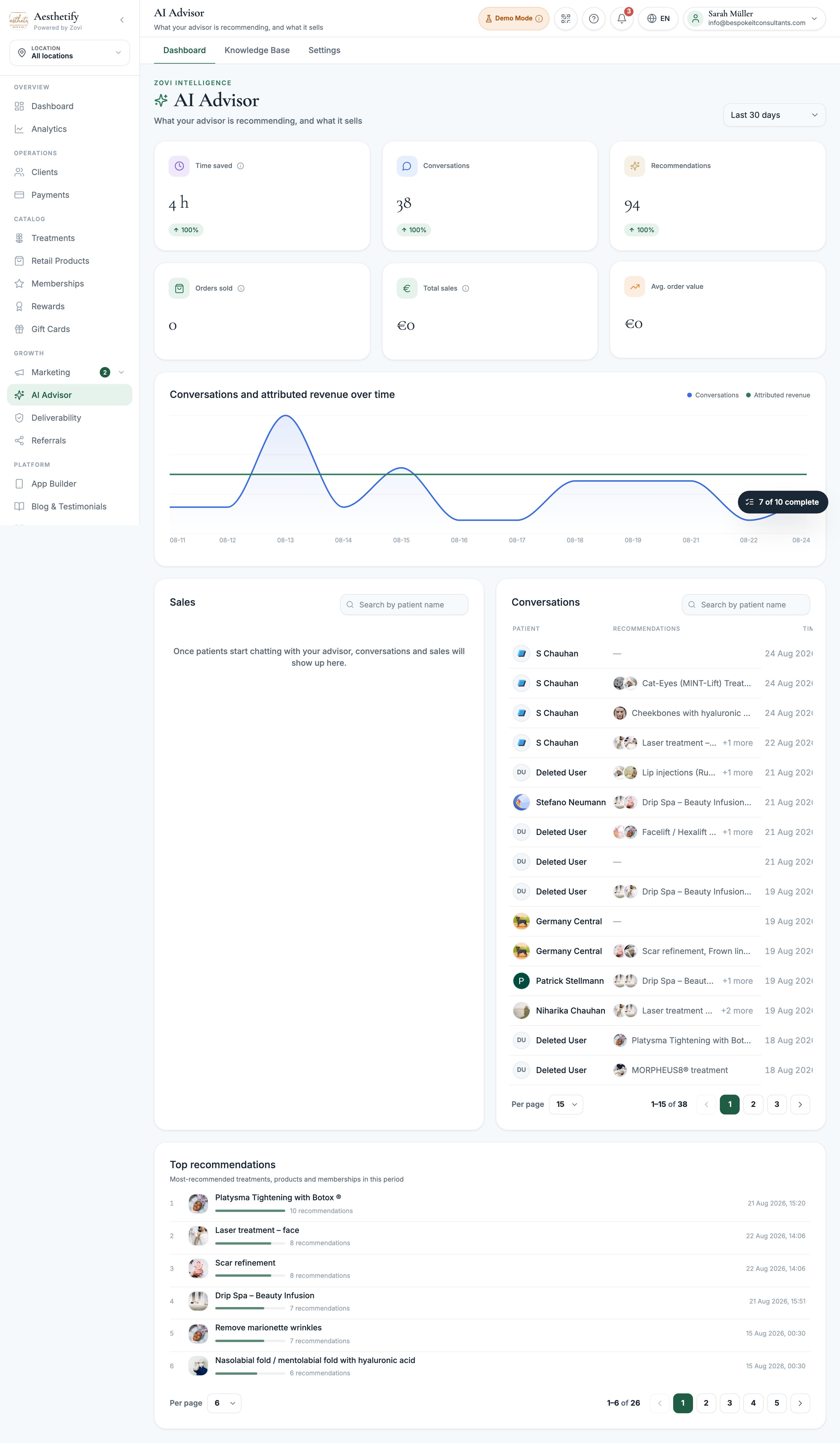
Screenshot: the AI Advisor section with the Dashboard, Knowledge Base, and Settings tabs.
The AI Advisor is an add-on that Zovi switches on for your clinic. You cannot
enable it yourself from this page. Anything you save here applies the moment it
is turned on, so it is worth setting up in advance.
What your clients see
When a client opens the advisor for the first time, it greets them by name and runs a short setup, under a minute: what they want to work on, a few questions about their skin, when they would like to start, and what feels comfortable to spend. If you offer more than one advisor, they pick one here too. They can skip it, and it never runs twice for the same client. In the conversation itself:- Replies are kept short, two or three sentences, rather than one wall of text.
- The cards usually match the words. Treatment, product, and membership cards under a reply are filtered to the things that reply actually named. A message about opening hours or parking gets no cards at all. When a reply names nothing in particular, the advisor falls back to showing its best suggestions in order.
- Cards show your member price and any package saving, with Add to cart. A treatment with package options asks the client to choose one first.
- When a membership would save that client money, the saving gets its own message rather than being buried in a paragraph.
- If the advisor cannot answer something, it says so and shows a Contact the clinic button instead of guessing.
Settings
Open AI Advisor and select Settings.Persona
Your advisor has a name and a face. There are two to choose from, Sofia and Ethan. You can:- Rename either of them, up to 40 characters, to whatever suits your clinic.
- Choose which ones your clients can pick from.
- Set the default advisor, the one a client gets if they do not choose.
Starter questions
Add up to three suggested questions clients see when they open the chat. Each question has an English and a German field, and both have to be filled in or that question is dropped when you save. This is true even if your app only runs in one of the two.Custom instructions
Optional, up to 800 characters. A short note steering how your advisor talks about your clinic.What the advisor can suggest
Treatments are always included, that is what the advisor is for. You control whether it also suggests:- Membership plans
- Retail products
Some rules cannot be changed. Your advisor will never give medical advice, never
promise a result, and never recommend anything that is not in your catalog.
Knowledge Base
Open AI Advisor and select Knowledge Base. This is the list of questions clients actually ask, and your answers to them. Your advisor quotes these answers directly, so whatever you write here is what a client is told.Only add things that live nowhere else. Your opening hours, prices, treatments,
team, and membership contents are already read live from your account. Copying
them in here just creates a second version that goes stale the moment you change
the real one.
- Worth a look first: a starting checklist of the questions most clinics need to answer, plus any inherited answer that mentions a fee. Check these before anything else.
- Answered: your advisor can already handle these.
- More questions: answer any of them and your advisor starts using it straight away. Leave one blank and it refers the client to your team instead.
Editing knowledge answers needs the settings permission, which owners and
managers have by default. Anyone who can open the page can read the answers.
Booking from the chat
Your advisor can take a client all the way to a booking, in whichever way your clinic takes bookings. If you book inside Zovi, the advisor walks the client through the treatment, the specialist, the day, and the time, confirms with them, and creates the real appointment. It offers a My Appointments button afterwards. It only ever starts a booking after the client has asked and agreed. If the slot goes while they are deciding, it says so honestly rather than claiming a booking that did not happen. An abandoned booking expires after 30 minutes. If you book on your own website, by WhatsApp, or by phone, the advisor still does the part a chat is good at, working out exactly which treatment and which package the client wants, then hands over with a single button that opens your booking page, a WhatsApp message already written for them, or their phone dialler. It tells the client clearly that it has not made the appointment itself. At each step the options appear as tappable choices above the message box, so clients can tap instead of typing. Typing still works.Set your booking links. The advisor uses the most specific link it can find:
the link on the package the client chose, then the link on the treatment,
then your clinic default. If none of those is set, the button is hidden and
the advisor asks the client to contact you directly, so it is worth making sure
at least a clinic default is in place. See Booking settings.
Reading your advisor numbers
The Dashboard tab reports over Last 30 days, Last quarter, Last year, or All time.
Below the tiles you get a conversations and revenue trend, a Sales table, a
Conversations table, and Top recommendations. Open any conversation to see
the Transcript, what was Recommended, the Outcomes (including anything
purchased), and a Summary. A conversation the advisor passed to your team is
tagged Handoff.
The AI Advisor section needs the analytics permission, which staff do not
have by default, so most staff members will not see it at all. Anyone who can
open it but cannot see client records sees that a conversation happened without
being able to read the transcript.
Related
Treatments
The catalog the advisor recommends from.
Memberships
Plans the advisor can describe and compare.
Booking settings
The booking links that decide how the advisor hands over.
Your app
Where clients meet the advisor.