

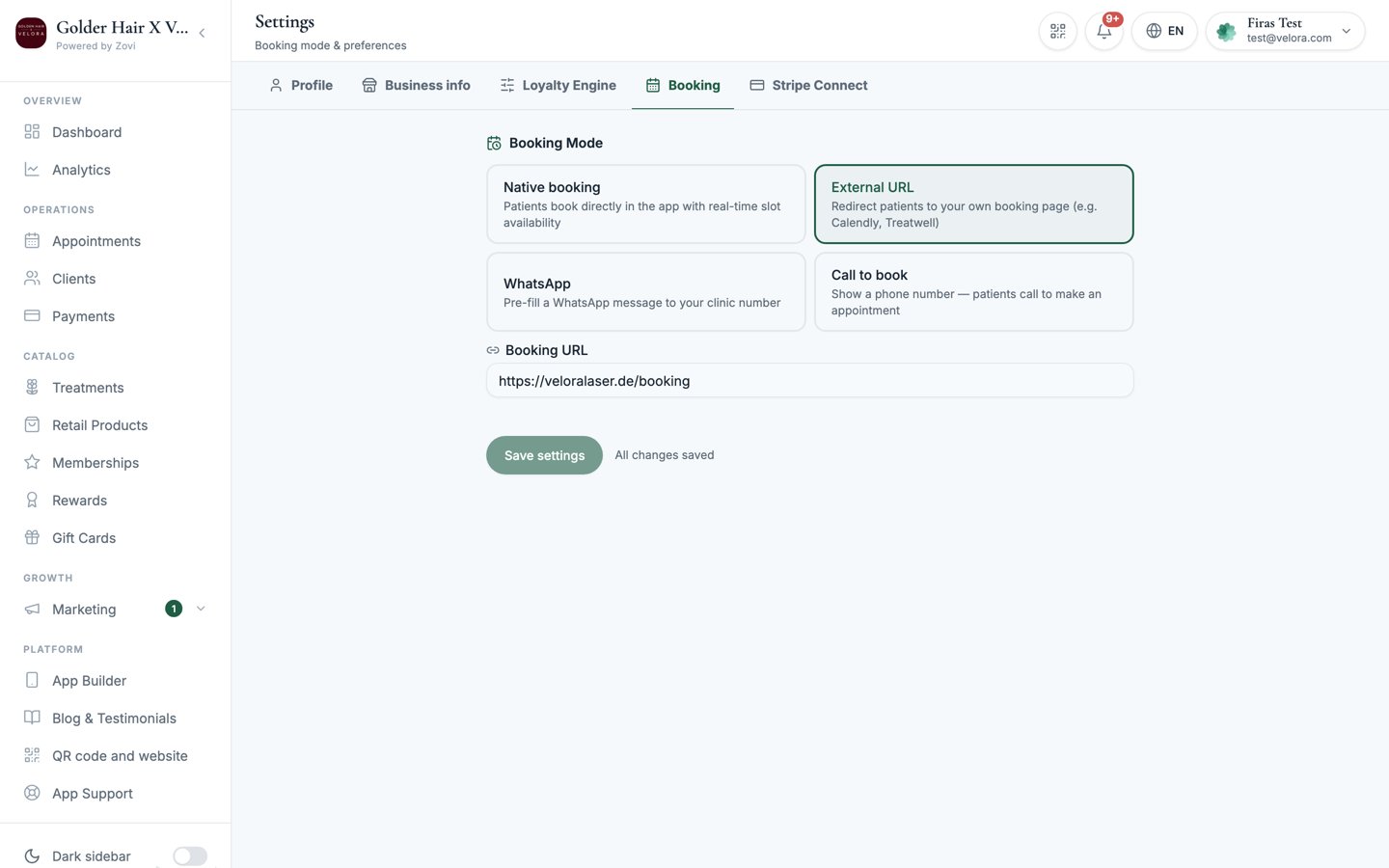
Screenshot: the Booking settings page with the Booking Mode selector at the top and the Native slot options revealed below.
Booking Mode
Booking Mode decides what happens when a client taps Book in your app. Choose one of four modes:
Three of the modes need a detail from you:
- External URL: enter the Booking URL clients should be sent to. It’s required for this mode.
- WhatsApp: enter your WhatsApp number, including the country code.
- Call to book: enter the Phone number clients should ring.
The extra settings below only apply when Booking Mode is set to Native.
In the other three modes, scheduling happens outside Zovi, so the slot and
approval options don’t appear.
Booking Mode and the AI Advisor
Booking Mode also decides how the in-app AI Advisor books for a client who asks in a chat.- On Native, the advisor completes the booking inside the conversation.
- On the other modes, it hands the client off to the route your clinic already uses: your booking page, WhatsApp, or your phone number.
Change your Booking Mode and the advisor follows automatically. There’s no
separate setting to keep in step. See the
AI Advisor for what else it can do.
Slot configuration (Native)
When you choose Native, a Slot Configuration section appears. These settings shape which times clients can pick.The Cancellation window isn’t only an internal flag. The same number is
written into the cancellation terms your clients read, which tell them they can
cancel or reschedule free of charge up to that many hours before their
appointment, and that cancellations after the window may not be refundable. So
changing it changes your published cancellation policy.
Confirmation & approvals (Native)
The Confirmation & Approvals section decides whether new bookings are live straight away or wait for your say-so.- Auto-confirm: bookings are confirmed automatically the moment a client books. Best for high-volume clinics that want a frictionless flow.
- Manual confirm: new bookings arrive as
Pendingand a team member must Confirm each one. Best when you want to vet every appointment first.
Pending to Confirmed.
Staff time-off approval
The same section has a Staff time-off approval switch. Turn it on to require that time-off requests from your team are approved before they block the calendar. With it off, requests apply automatically. You manage and approve those requests on each person’s Time off tab under Teams.Related
Appointments calendar
See, confirm, reschedule, and complete bookings.
Teams: staff & permissions
Set working hours and handle staff time off.