

Like the rest of the Offers suite, automatic offer discounts are capped by your
Loyalty Engine guardrails.
The three automatic offers
Birthday
A treat sent around each client’s birthday.
Anniversary
Marks the anniversary of a client joining or their first visit.
Lapsed Member
Wins back a member who has gone quiet.
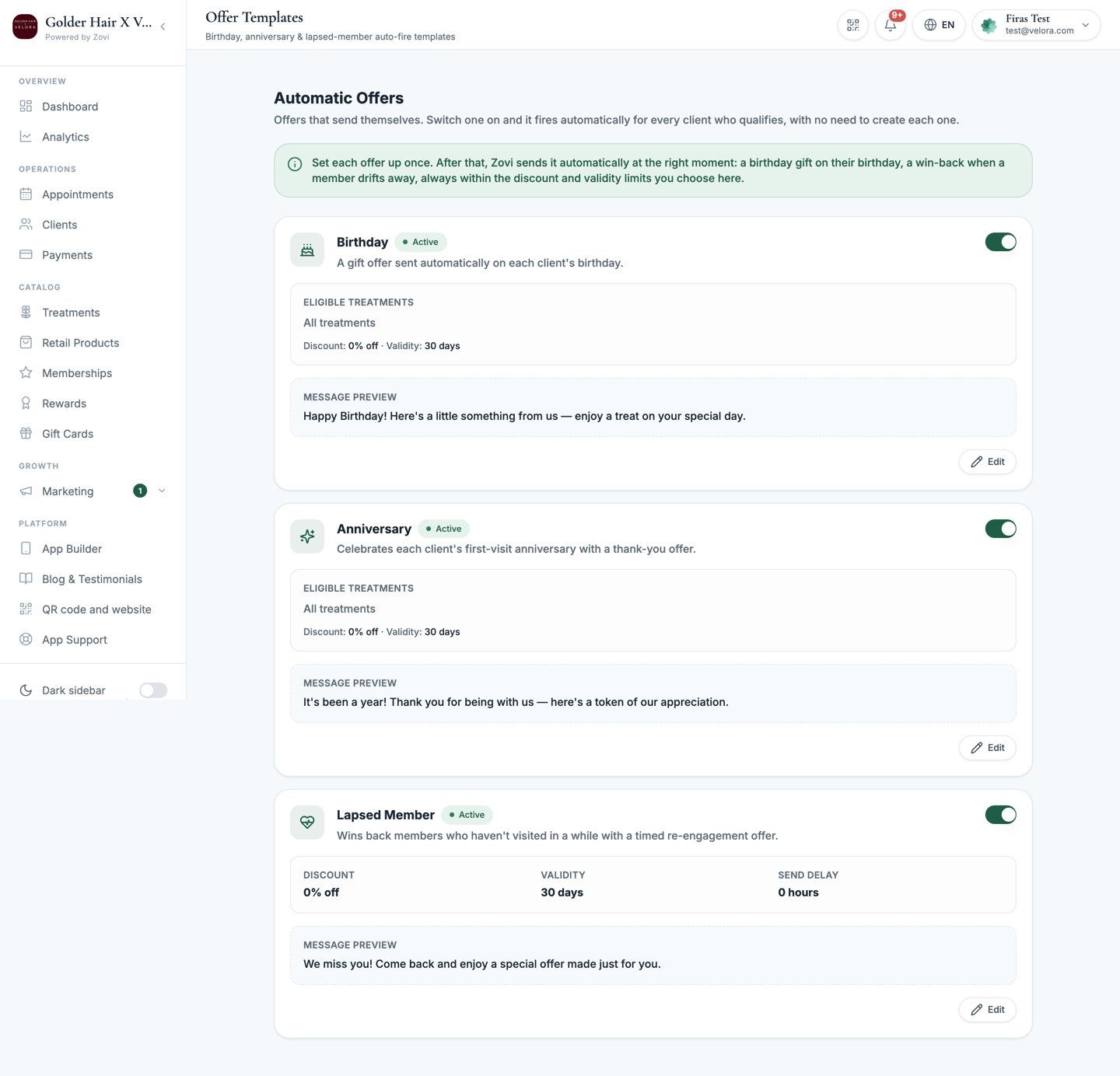
Screenshot: the Automatic Offers tab with the Birthday, Anniversary, and Lapsed Member cards, each with an on/off switch and a banner noting these fire without per-offer approval.
What you configure
All three share an on/off switch, a validity window, and message copy in English and Deutsch. Beyond that they differ, because they do different jobs.Birthday and Anniversary
These two have no send delay at all.
Lapsed Member
This one wins back a member who cancelled, so it discounts the membership price, not a treatment.
There is no eligible-treatments pool here, because the discount applies to the
membership itself.
To stop the Lapsed Member offer sending, switch it off. You cannot delay
or pause it any other way.
Set up an automatic offer
1
Open the automatic offer
Go to Marketing → Offers → Automatic Offers, then choose Birthday,
Anniversary, or Lapsed Member.
2
Set the discount
Choose the reward. Keep it within your Loyalty
Engine limits. The offer will not exceed the maximum
discount you allow.
3
Set the validity and the remaining settings
Set how long the offer stays valid, then fill in whichever remaining settings
this automatic offer has.
4
Write the message
Fill in the English and Deutsch copy. Each client sees the wording for
their language.
5
Switch it on
Turn it on. From now on it sends automatically whenever a client
qualifies, with no approval step.
Related
Offers & the approval inbox
Everything else, where offers wait for your approval before they send.
Discount guardrails
Owners set the caps that automatic offers must stay within.