

This scanner is for your existing clients. To bring new clients in, share
your clinic’s join code instead. See QR code and website.
One scanner, three kinds of QR
When you open Scan QR (“Scan patient QR” / “Point camera at patient’s QR code”), the scanner recognises three kinds of client QR and does the right thing automatically:
The client shows the matching QR from their Beauty Circle app: the check-in
QR to earn points, or a reward or order QR when redeeming or collecting.
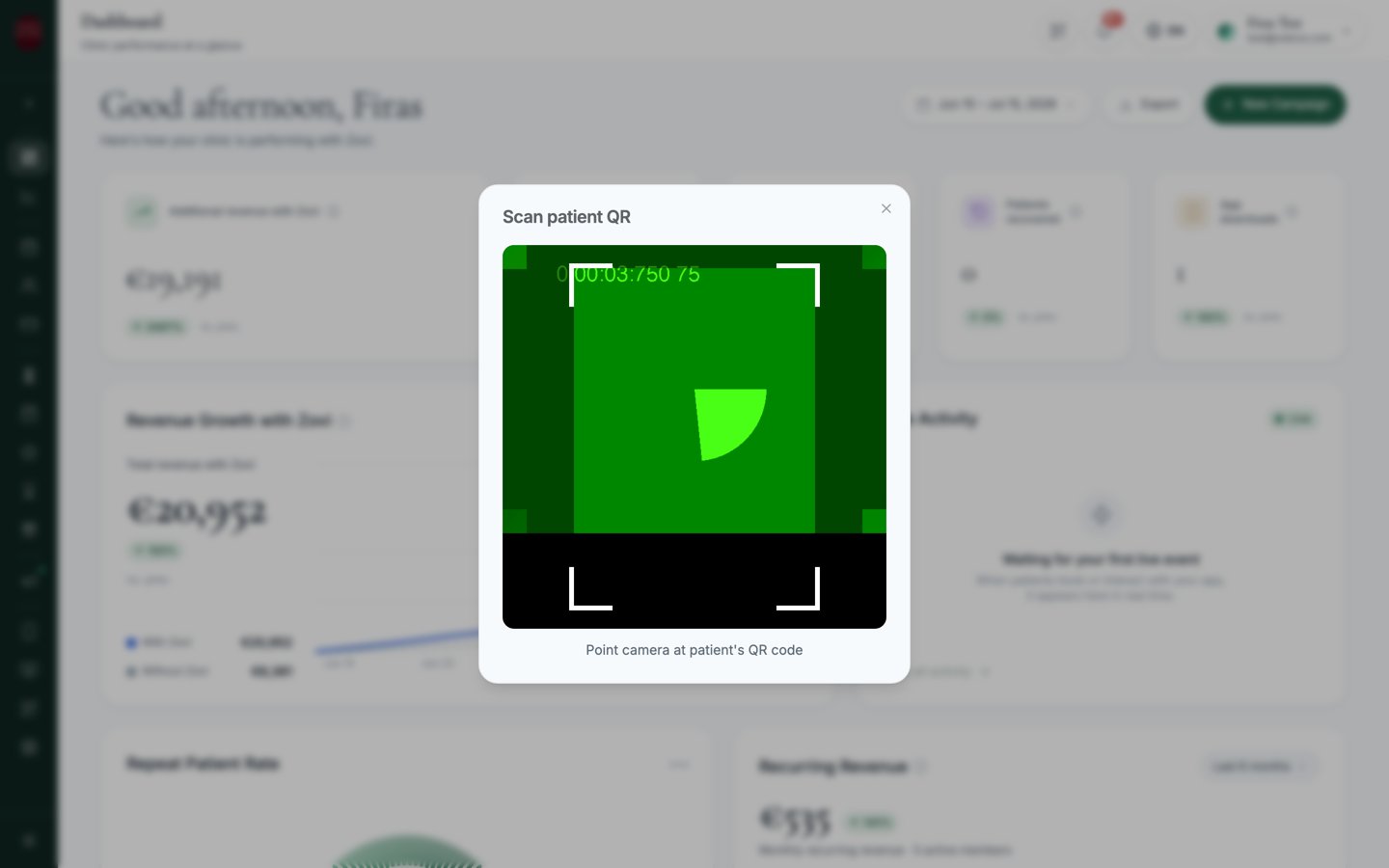
Screenshot: the Scan QR button in the top bar, and the 'Scan patient QR' camera view.
Check a client in
Use this when a client arrives for their visit and wants their check-in points.1
Open the scanner
Select Scan QR in the top bar. Your camera opens with “Scan patient QR”.
2
Ask the client for their check-in QR
The client opens their Beauty Circle app and shows their check-in QR.
The app tells them to have this QR scanned to earn check-in points.
3
Point the camera at it
Line the QR up in the camera view. The scanner reads it automatically, no
button to press.
4
Confirm the check-in
A toast confirms it: ” checked in (+ pts)”. If they’ve
already checked in, you’ll see an “already checked in” message instead.
Redeem a reward or session
When a client wants to redeem a reward or a booked session, they show its QR and you scan it the same way. The scanner confirms “Redeemed: × ”. This records the redemption so the same reward or session can’t be spent twice. Rewards are set up under Loyalty & rewards.Open an order to fulfil
If the client shows an order QR, the scanner opens that order, showing ”, order scanned”, with a way to view the order and fulfil it at the counter.When scanning doesn’t work
Unrecognised QR code format
Unrecognised QR code format
“Unrecognised QR code format” means the code isn’t a Zovi client QR. Make
sure the client is showing a QR from their Beauty Circle app (the
check-in, reward, or order QR), and not a different app’s code or your
clinic’s own join QR.
Already checked in, or already redeemed
Already checked in, or already redeemed
If a client has already checked in today, scanning again shows “already
checked in” and won’t award points twice. Redemptions work the same way, a
reward or session that’s already been redeemed can’t be spent again. This is
expected, and protects against double-spending.
Related
Loyalty & rewards
Set up how clients earn check-in points and what they can redeem.
Payments & orders
See orders and payments behind the counter.