

The Offers suite covers offers, flash deals, scratch cards, and promo codes, all
in one place.
The Approvals inbox
Nothing reaches a client until you approve it. Offers are proposed from several sources and land here for your review.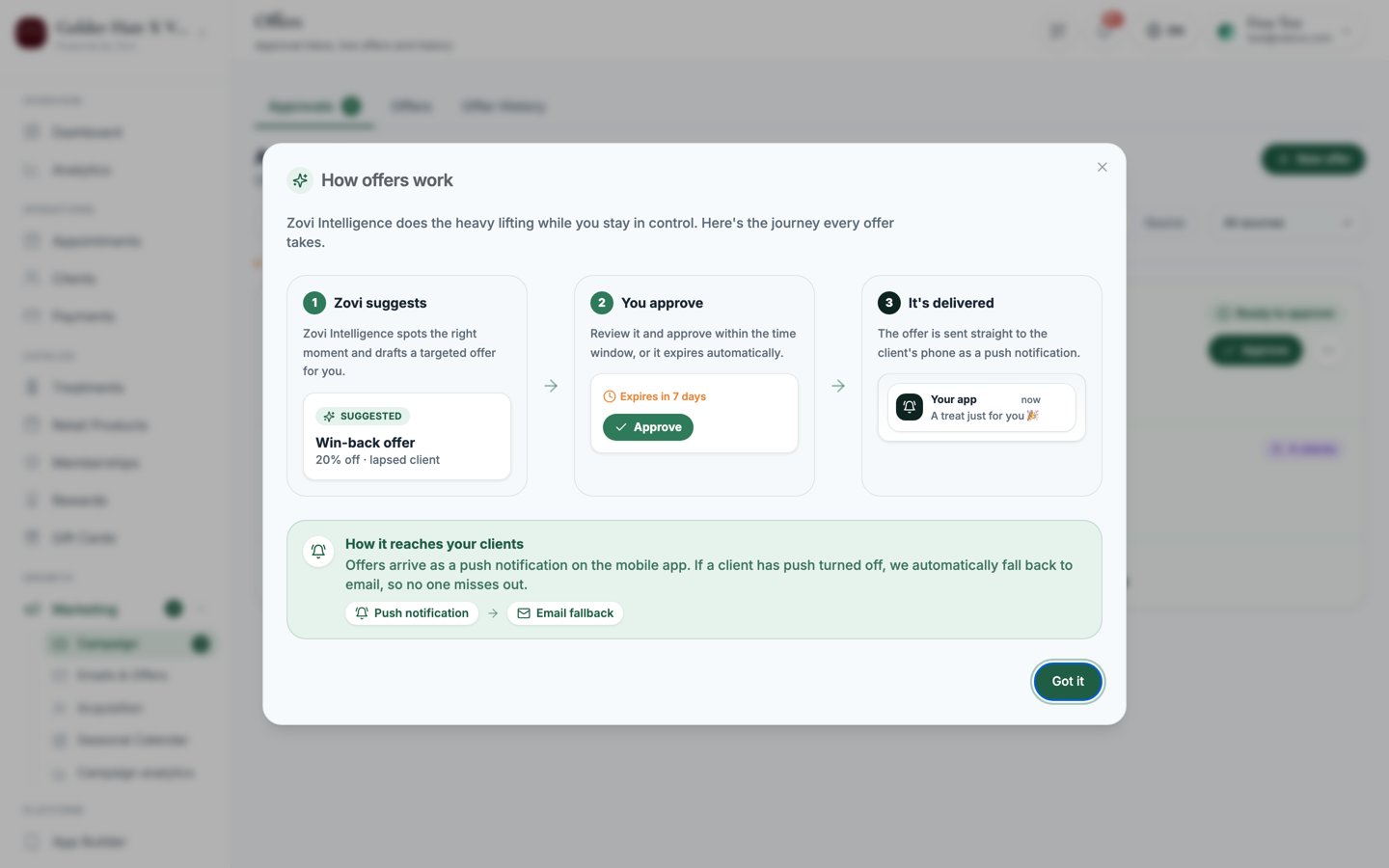
Screenshot: the Approvals tab grouped by Urgency, showing offer cards with source badges, 'Why this fired', a 'Within guard rails' chip, and Approve / Reject actions.
Where offers come from
Each card shows a source badge so you know what proposed it:Zovi Intelligence needs about a 14-day warming period before it starts
suggesting offers. Its suggestions always stay within your guardrails.
Read a card before you approve
Every card is designed to be approved in seconds:- Why this fired: a plain-language reason the offer was proposed.
- “Within guard rails · max % / €”: a chip confirming the discount stays inside the limits set in your Loyalty Engine.
- Conflict box: if the offer overlaps another one for the same client, you’re told how it resolves. The rule is simple: a targeted offer wins over a broader one.
Group the queue
Use the grouping control at the top to sort the queue:- Urgency: buckets of Needs you now, This week, and Scheduled.
- Source: grouped by where each offer came from.
Approve or reject
1
Review a card
Read Why this fired and check the Within guard rails chip. Use
Preview to see exactly what the client would get.
2
Approve it
Select Approve on a single card. To clear the queue faster, use Approve
all (N), or tick several cards and choose Approve selected.
3
Reject if it's not right
Select Reject and add a short reason. The offer never reaches the client.
4
Tweak before approving
Use Edit & approve to change a headline, discount, or audience first, then
approve the edited version.
Live Offers
The Live Offers tab shows every offer currently running. For each one you get live metrics (Impressions, Redemptions, Conversion %, and Revenue), plus a vs target bar so you can see how it’s tracking. Use View to inspect an offer, Duplicate to reuse it as a starting point, and End now to stop an offer immediately before its scheduled end.Offer History
The Offer History tab is the record of everything that’s finished. It’s a table of Offer, Source, Audience, Status, Redemptions, Revenue, and Date. Statuses include Ended early, Expired, and Rejected. Use Export CSV to download the history for your own reporting.Create an offer
From the Approvals inbox, start a new offer and choose one of two types:Promotion
A time-limited offer that appears in the app, a flash deal or a scratch card.
Promo code
A code clients apply at checkout or type in, great for sharing on social or
with partners.
Create a promotion
A promotion is a time-limited offer surfaced inside the client app.1
Choose the reveal mode
Pick how the client uncovers the offer:
- Tap to reveal: the client taps to see it.
- Scratch to reveal: the “One-time Offer” scratch-card experience.
2
Write the headline and message
- Promotion headline becomes the push notification title.
- Promotion message is the body shown in the app and in the push.
3
Set the discount
Choose Percentage off or Amount off and enter the value. The value is
capped by your guardrails, so you can’t exceed the maximum discount set in
the Loyalty Engine.
4
Set the duration and start
Set the Duration in days (default
3). Choose a Start date, or leave it
empty to start immediately.5
Choose the audience
Decide who sees it:
A Segment combines: membership status (
Any / Members / Non-members),
inactivity (inactive since 30 / 60 / 90+ days), and a minimum lifetime
spend €.6
Choose what it applies to
Set the eligible treatments using the Included / Excluded tabs (all
treatments by default), and include retail products if you want the discount
to cover products too.
7
Set the limits and visibility
- Turn on One-time per client so each client can redeem it only once.
- Choose the channels: Show as banner in app (a card on the home screen) and Send push notification on launch.
8
Create it
Select create. If the promotion conflicts with another live offer you’ll see a
warning, so choose Create anyway to proceed. You’ll see an Offer created
confirmation.
Promotions reach clients through the app banner and push notification
only. There’s no SMS. For email, use the Newsletter tab in Emails & Offers.
Create a promo code
A promo code is a code clients apply at checkout or type in themselves, useful for sharing on Instagram or with partners.1
Set the code and discount
Enter the promo code text (for example,
SUMMER20). Choose Percentage
off or Amount off and enter the value. For a percentage code, set a Max
discount cap € so a large order can’t run away.2
Add cart and usage limits
- Min cart value €: the smallest order the code applies to.
- Total redemption limit: how many times it can be used overall (default
100). - Max uses per client: how many times one client can use it.
3
Set expiry and audience
Set Expiry in days, or choose Never. Then pick the audience (All,
Segment, or Specific clients) the same way as a promotion.
4
Choose what it applies to
Set the eligible treatments for the code.
5
Choose how it's delivered
Pick at least one delivery method:
- Show in app checkout: clients tap to apply it during checkout.
- Requires code entry: clients type the code in for Instagram or partner sharing.
Send an offer to a single client
You don’t have to start from the inbox. From a client profile you can select Send Offer or Send Win-Back Offer (also available from the client list). It opens the create flow already targeted to that person as a Specific clients audience. See Client offers & rewards.Related
Automated templates
Birthday, Anniversary, and Lapsed Member offers that fire without per-offer
approval.
Set your discount guardrails
Owners set the maximum discount, automated discount amount, and monthly budget.