

Clients subscribe to plans themselves, in the app. From the dashboard you
create and edit plans and manage, pause, or cancel existing
subscribers. You don’t enrol clients here.
Membership KPIs
A strip at the top of the page tracks how your membership base is performing:Tabs
The page has three tabs:- Membership Plans: the plans you offer.
- Subscribers: everyone currently or recently subscribed.
- Custom Plans: one-off, client-specific bundles. See Custom plans.
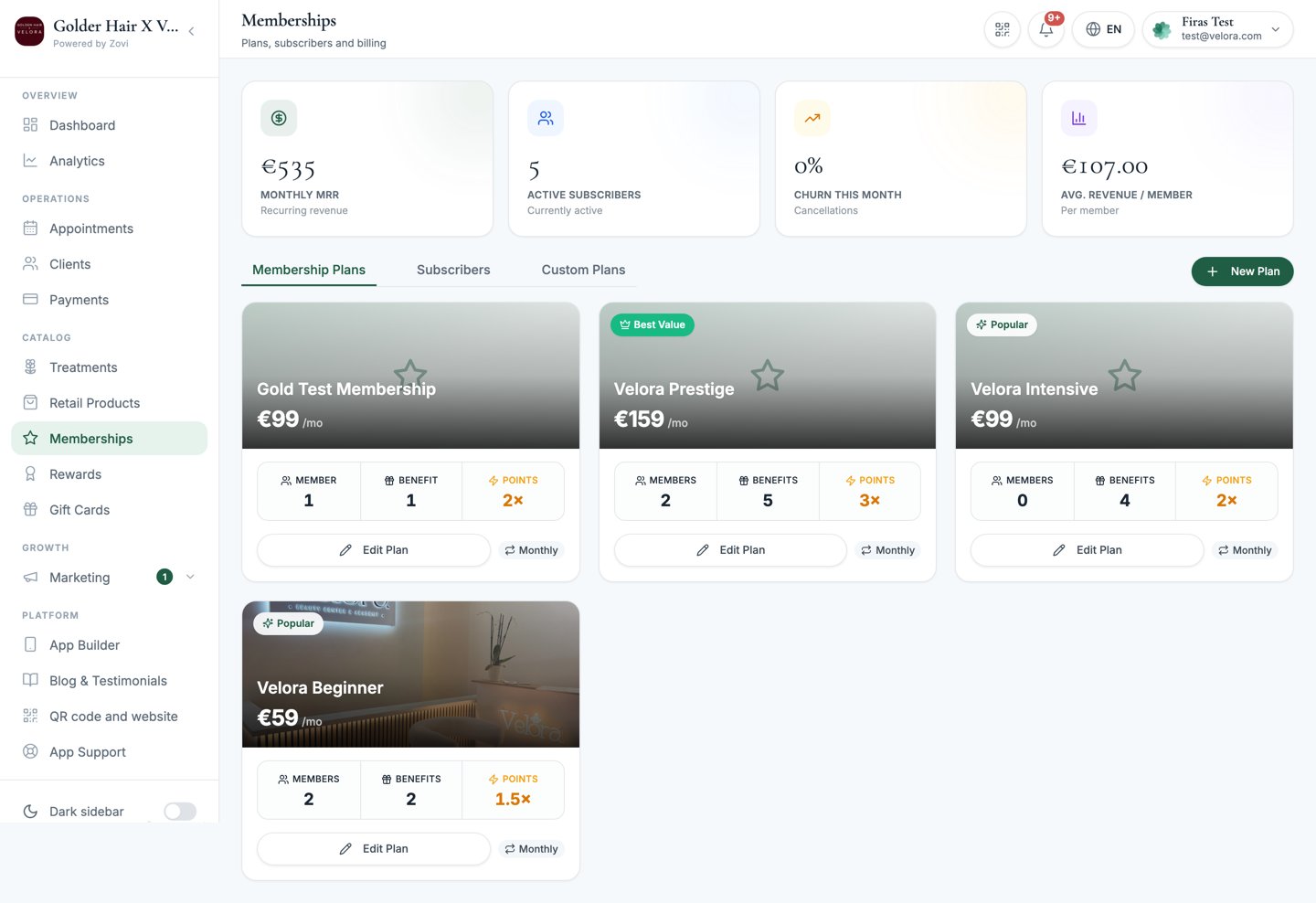
Screenshot: the Memberships page showing the KPI strip, the Membership Plans / Subscribers / Custom Plans tabs, and the plans table with a New Plan button.
Create a membership plan
On the Membership Plans tab, select New Plan. The dialog shows a live phone preview on the right (“Configure how this plan appears in the client app”) and is split into four sections.1
Set the basics
Name the plan, set its monthly price, pick a Plan type, and choose how
it’s presented.
2
Add membership discounts
Define the discounts members get automatically.
3
Add included products
Grant free credits members can claim each period. This section only appears
on a Free products plan.
4
Add a New Member Gift (optional)
Give clients a one-time gift for joining the plan.
5
Save
Select Create. You’ll see a Plan created confirmation. Editing an
existing plan uses the same dialog, with a Save Plan button and a
Plan updated confirmation.
1. The Basics
Choose a plan type
Every plan runs on one of two models, and they are mutually exclusive.
Picking Beauty credits reveals a required Credit per billing period
amount, and it replaces the Included Products section entirely, so there are
no slots to configure. Unspent credit rolls over into the next period and never
expires.
Membership discounts and the points multiplier apply to both plan types.
2. Membership Discounts
Discounts here are applied automatically whenever a member qualifies, so they don’t need a code. Add a Discount #N row for each one:
Changing a row’s Channel clears its Scope, so pick the scope again after
you switch channel.
3. Included Products
Included products are free credits members can claim during each billing period, for example one free facial a month. Add a Slot #N for each credit:What Applies to covers
A slot holds one or more Applies to rows, and each row has its own settings:
Add as many rows as the slot needs. There is no limit on how many a slot can
hold.
4. New Member Gift
A New Member Gift is a one-time gift granted automatically the moment a client subscribes to this plan. Turn on Offer a New Member Gift, then pick a Gift type:
You can also set:
The New Member Gift is granted once, when the client joins. It is not the
same as the Included Products slots, which refresh every billing period,
and it is not the loyalty Welcome gift, which every new client gets whether
or not they hold a membership.
Manage plans
The Membership Plans table lists every plan with its price, billing cycle, subscriber count, number of benefit rules, points multiplier, and status. Each row has actions:Manage subscribers
The Subscribers tab lists each member with their plan, status (ACTIVE, PAST_DUE, CANCELLED, or PAUSED), renewal date, monthly value,
and included-credit slots. Select a row to open the subscriber sheet.

Screenshot: the subscriber sheet showing the Overview tab with member details and included slots, plus Pause and Cancel actions.
- Overview: member since, next renewal, monthly value, loyalty points, the credits included this period, treatments already claimed, and their discount benefits.
- Billing: the member’s invoices with their status (
Paid,Open,Void, orFailed).
1
Pause a membership
Select Pause to temporarily stop billing, useful when a client is away.
Their status becomes
PAUSED.2
Cancel a membership
Select Cancel and confirm to end the plan. Their status becomes
CANCELLED.Memberships are always clinic-wide: they apply across all your locations,
not per branch.
Related
Custom plans
Build one-off, client-specific treatment bundles.
Treatments
The services you scope membership discounts and credits to.