

You can send to all active clients or choose a specific Audience, add a deep
link into the app, and schedule the campaign for later.
Compose a campaign
1
Start a new campaign
Select New campaign to open the Compose Campaign dialog.
2
Write the notification
- Title: required, up to 65 characters.
- Body: required, up to 240 characters.
3
Send or schedule
Select Send to send now. If you turned on Schedule for later, the
button becomes Scheduled and the campaign goes out at your chosen time.
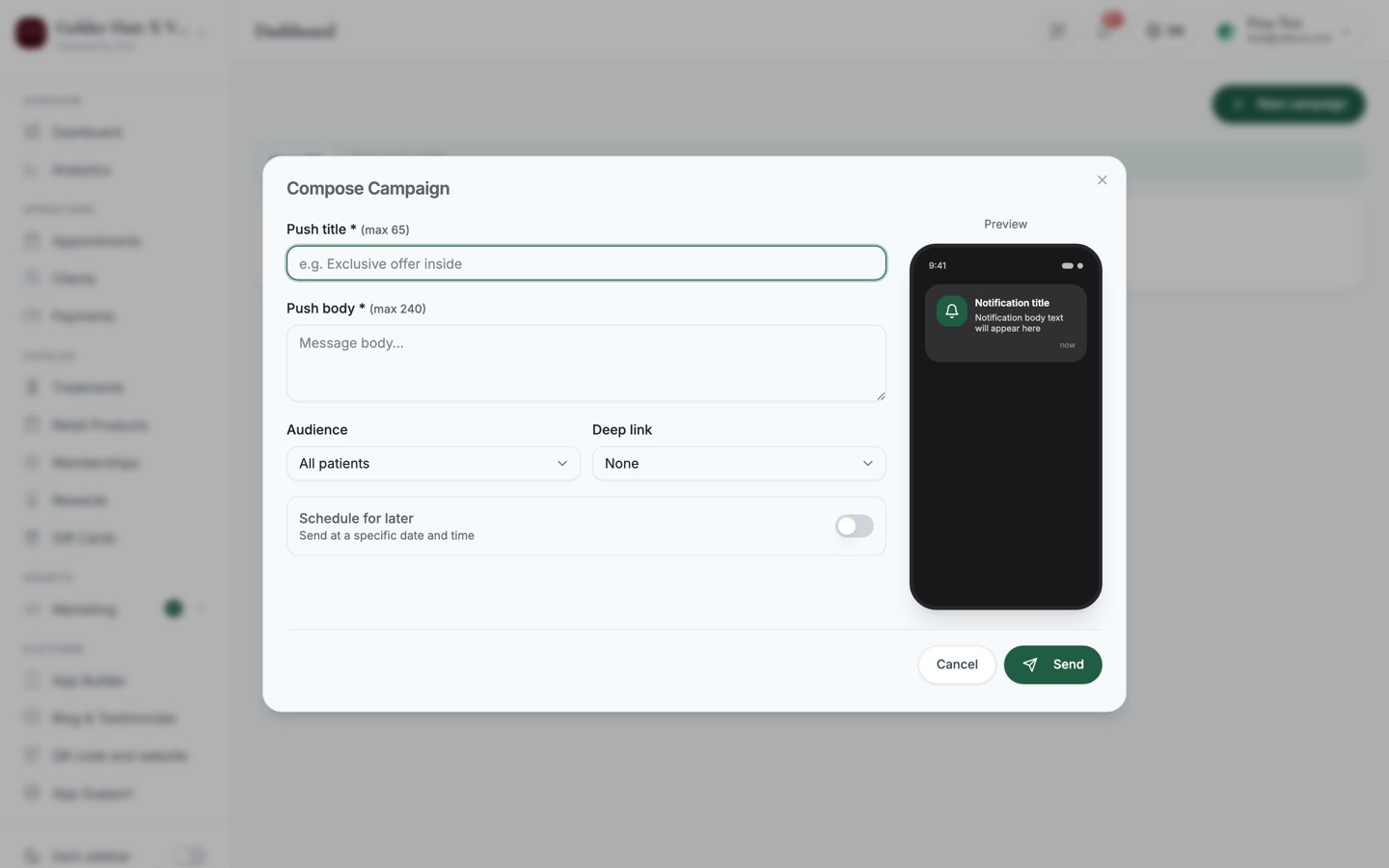
Screenshot: the Compose Campaign dialog with the Title and Body fields on the left and the live phone notification preview on the right.
Audience, deep links, and scheduling
The Compose dialog gives you three controls to fine-tune each campaign:- Audience: choose who receives it:
- All clients
- Members only
- Inactive 30+ days
- Inactive 60+ days
- Deep link: send clients straight to a screen when they tap the notification: Home, Treatments, Memberships, Rewards, or Cart.
- Schedule for later: toggle this on and set a Send at date and time instead of sending immediately.
If you leave the audience on All clients, the campaign goes to everyone who
is currently active.
Sent, Scheduled and Drafts tabs
Campaigns are listed under three tabs:- Sent (N): the default. Every campaign that has already gone out.
- Scheduled (N): campaigns queued to send later.
- Drafts (N): campaigns you started but have not sent.
Statuses
Related
Offers & promo codes
Discount offers that appear in the app and need approval before they send.
Marketing overview
See how campaigns fit alongside offers, automatic offers, and newsletters.