

This page is for onboarding new clients, turning prospects into clients.
It is a different thing from the Scan QR scanner in the top bar, which you use
to check an existing client in. See Check a client in.
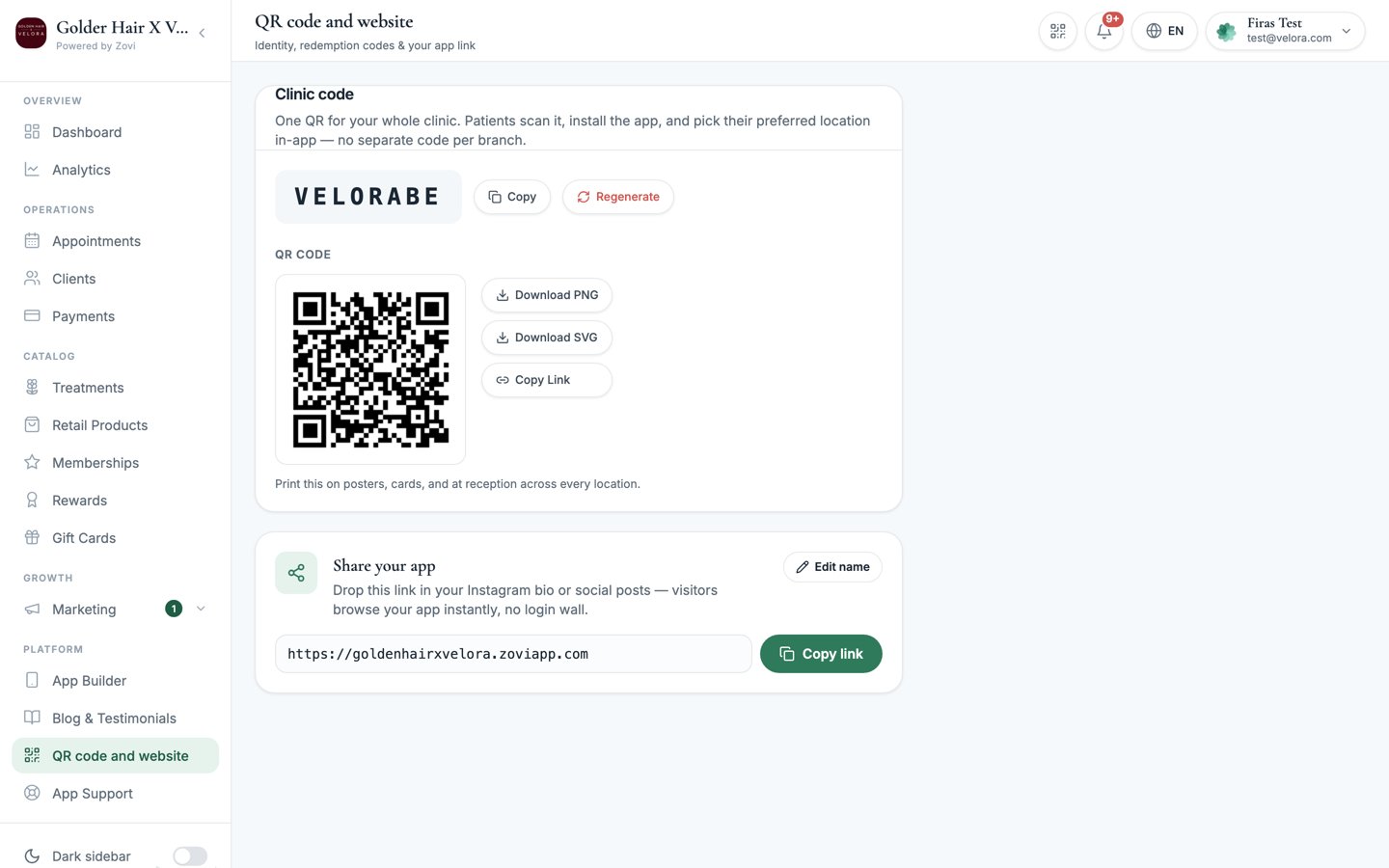
Screenshot: the QR code and website page showing the clinic join code, its QR code with download buttons, and the Share your app card.
Join code
Your clinic has a short join code. This is the identifier baked into your clinic’s join link and QR.- Copy: copy the code to share it.
- Regenerate: create a fresh code for your clinic.
QR code
The QR code is the scannable version of your clinic’s join link. A prospect points their phone camera at it to install your app and join the clinic.- Download PNG: a raster image, best for on-screen use and quick prints.
- Download SVG: a vector image that stays crisp at any size, best for large prints, posters, and window decals.
- Copy link: copy the join URL to share digitally (email, social, messaging).
Share your app
Below the QR you get a Share your app card with a clinic-branded website link, for examplehttps://<clinic>.zoviapp.com. Drop this link in your Instagram bio or
a social post, and visitors browse your app instantly with no login wall.
- Copy link: copy the website link to paste into a bio, post, or message.
- The web name is editable, so you can set the part before
.zoviapp.comto match your clinic.
Not the check-in scanner
Keep the two QR tools straight:QR code and website (this page)
A join code and app link you share so new clients can install your app
and join. One per clinic.
Scan QR (top bar)
A scanner you use to check an existing client in, redeem a reward, or open
an order at the counter.