

Send an offer to a client
You can target a single client with an offer from a few places:- From the client’s profile, select Send Offer.
- If the client is at risk or churned, use the Send Win-Back Offer button on the banner at the top of their Overview tab.
- From the Clients list, use Send offer in a client’s quick-actions menu.
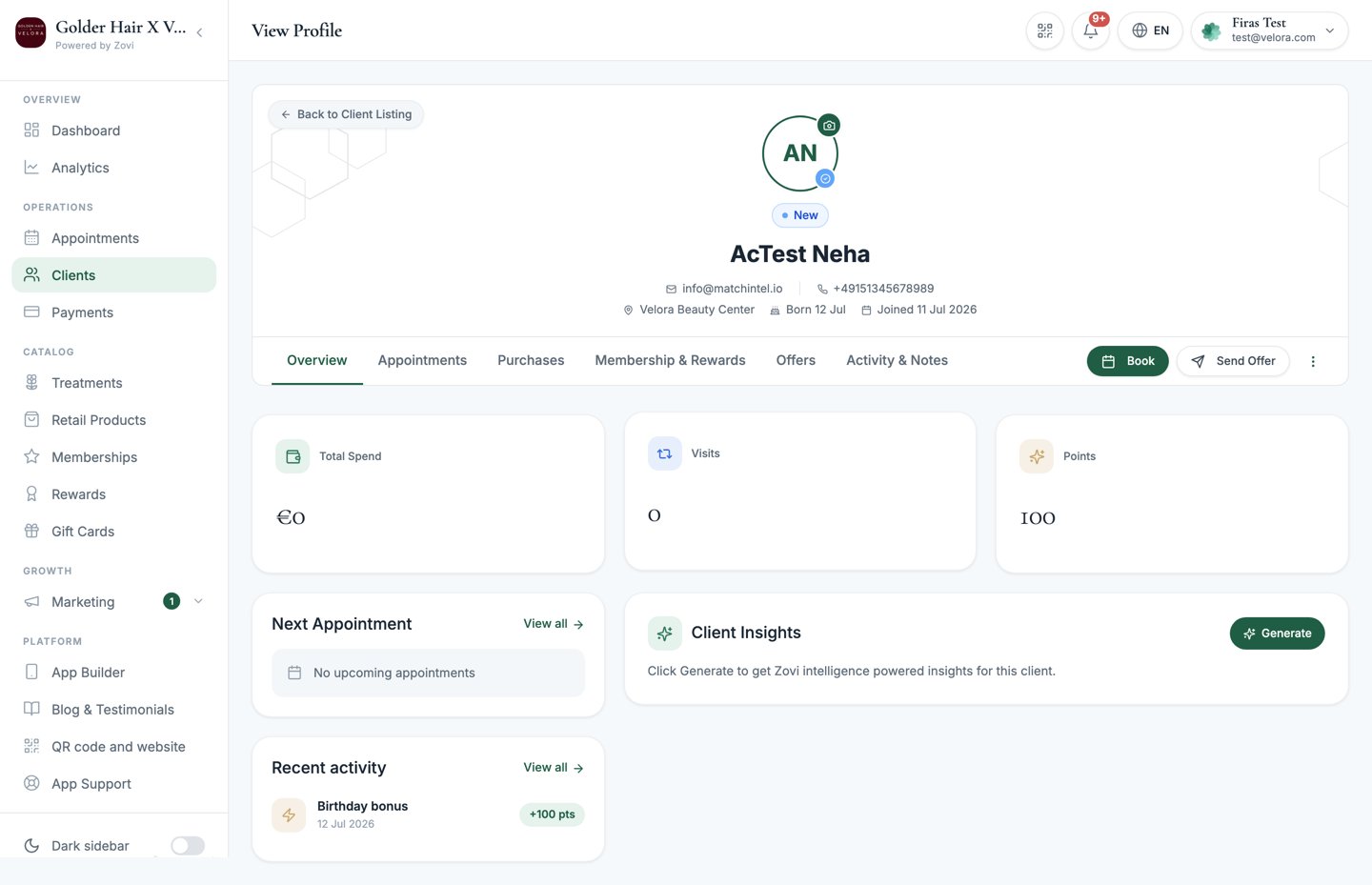
Screenshot: a client profile's Send Offer button, and the offer builder opening with the client pre-selected as the audience.
Offer types, briefly
In the builder you choose the kind of offer:- Promotion: a time-limited discount.
- One-time Offer: a scratch-and-reveal style offer the client taps to unlock.
- Promo Code: a code the client enters at checkout.
When you send from a client’s profile, the audience is pre-filled to that one
client. You can still widen it to a segment or all clients in the builder.
Offers, promotions & promo codes
The complete offer builder, start to finish.
Referral rewards
If a client has invited a friend, their referral reward is not a points adjustment and does not appear here. Referral rewards are paid as a cash value in your own currency, and every invitation is tracked on the Referrals page instead.The Referral reason in Adjust Points is for a manual goodwill gesture only.
It is not connected to the referral programme, and using it does not create or
replace a referral reward.
Give or adjust points and rewards
To give a client points, take points away, or fix a balance, use Adjust Points on the client’s Membership & Rewards tab. This is the one place to change a client’s points by hand.1
Open Membership & Rewards
On the client’s profile, open the Membership &
Rewards tab and find the Points Balance section.
2
Enter the adjustment
In Adjust Points, enter the change. Use a + to add points (for example
+50) or a - to remove them (for example -20).3
Choose a reason
Pick a reason so the adjustment is recorded:
4
Apply
Select Apply Adjustment. The client’s balance updates and the change is
logged in their Reward History.
How rewards, goals, and tiers work
Points feed the client’s loyalty tier and their reward goals. As a client earns points they progress along their Rewards journey, unlocking goals along the way, which you can follow on the Membership & Rewards tab. Adjusting points here moves the client along that journey just as an earned point would. The reward goals and tiers themselves are set up for your whole clinic under Rewards. To change what clients can earn and unlock, see:Loyalty & rewards
Set up points earning, reward goals, and tiers for your clinic.