

Retail must be enabled for your clinic to use this page. If retail is
turned off, Retail Products is hidden from the sidebar and the page isn’t
available. Contact info@zoviapp.com if you’d like
it switched on.
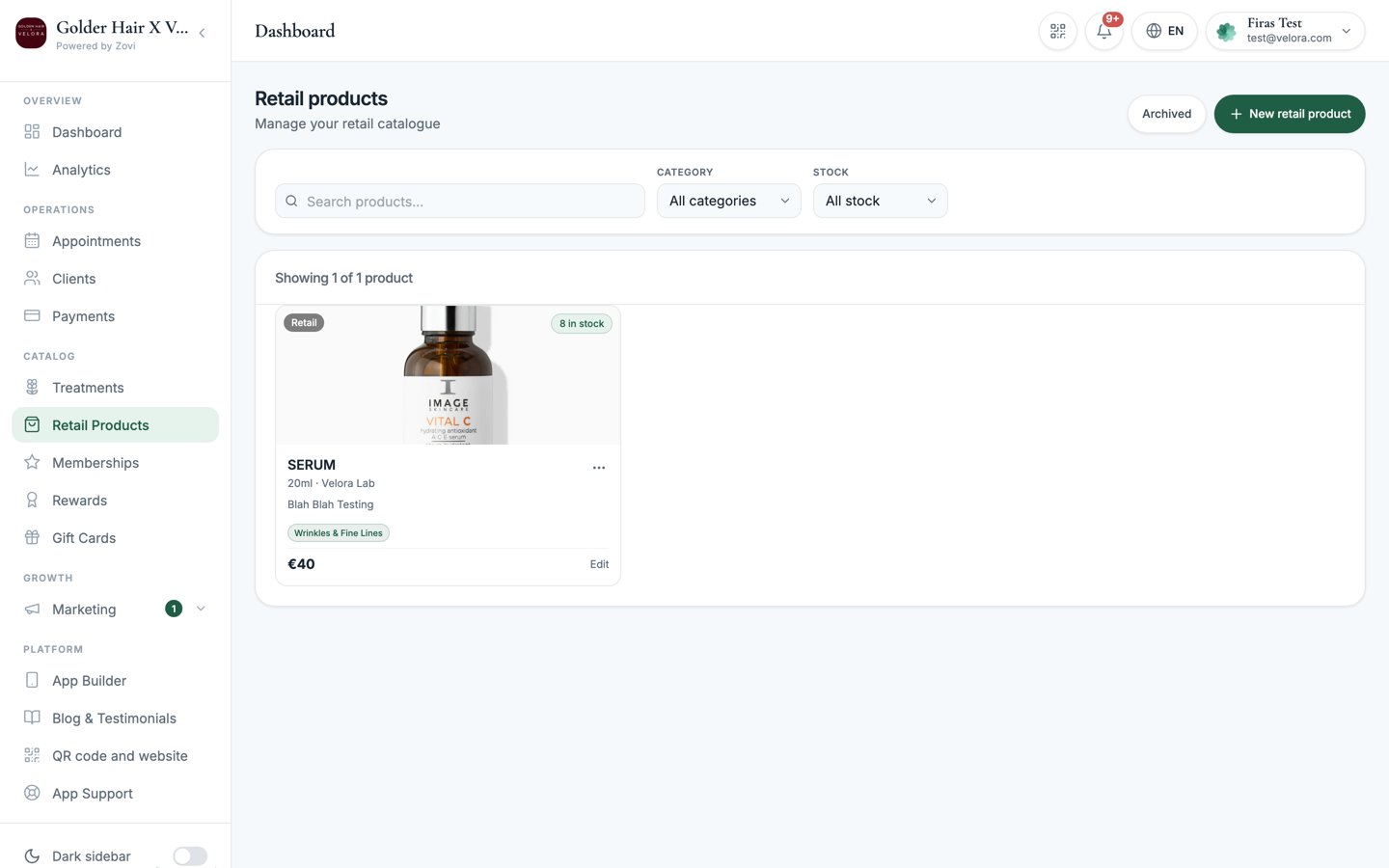
Screenshot: the Retail Products list showing product cards with stock badges, the search and filter controls, and the New retail product button.
The retail products list
Each product appears as a card with its image, a Retail pill, a stock badge (N in stock, Low stock (N), Out of stock, or Untracked), the name,
{size} · {brand}, price, and concern chips. Select the ⋯ menu on a card
for Edit, Adjust stock, and Archive.
Use the controls at the top to find a product:
Add a retail product
Select New retail product. Fill in the dialog and select Create product.1
Enter the product details
Set the name, brand, size, price, SKU, category, and concerns.
2
Set availability (multi-location clinics)
Choose which locations stock the product.
3
Configure inventory
Decide whether to track stock and set your levels.
4
Add description and photos
Describe the product and add a hero image plus gallery photos.
5
Save
Select Create product. To change a product later, open its ⋯ menu and
select Edit, and the footer button then reads Save changes.
Fields
The field is labelled Price (€) whatever currency you run on. Ignore the
euro sign: the amount you type is charged and displayed in your clinic’s own
currency, set under Business info.
Inventory
The Inventory section controls stock:Adjust stock
Once you’re tracking stock, use Adjust stock to record deliveries, sales outside the app, breakages, or a stock-take correction, rather than editing the raw number.1
Open the adjustment
From a product’s ⋯ menu, select Adjust stock. The dialog shows the
Current stock as read-only.
2
Enter the adjustment
Type a positive number to add stock (for example,
+10 for a delivery) or a
negative number to remove it (for example, -3 for breakages).3
Give a reason
A Reason is required. It records why the level changed, so your history
stays auditable.
4
Confirm
Apply the adjustment. The stock badge updates immediately.
Archive a product
Retail products are archived rather than deleted, so past orders keep their records. Open a product’s ⋯ menu and select Archive to hide it from the client app. Switch on the Archived toggle to view or restore archived products.Where clients see your retail
Retail has its own Retail tab in the shop in your client app, sitting alongside Treatments. That tab has its own search plus price and concern filters, so clients can shop your shelf on its own. Products also surface when a client browses by concern, mixed in with matching treatments, so tag them properly. See Concerns.Retail in rewards, memberships and offers
Once you have retail products, you can use them almost anywhere you’d use a treatment:- As a free reward in your loyalty catalog. See Loyalty & rewards.
- As an item in a membership included-product slot. See Memberships.
- As a New Member Gift when a client joins a membership plan.
- Inside a referral reward, where you choose whether the reward covers all retail, specific products, or none. See Referrals.
Related
Concerns
Manage the skin concerns you tag products with.
Treatments
Build the service catalogue clients book alongside retail.