

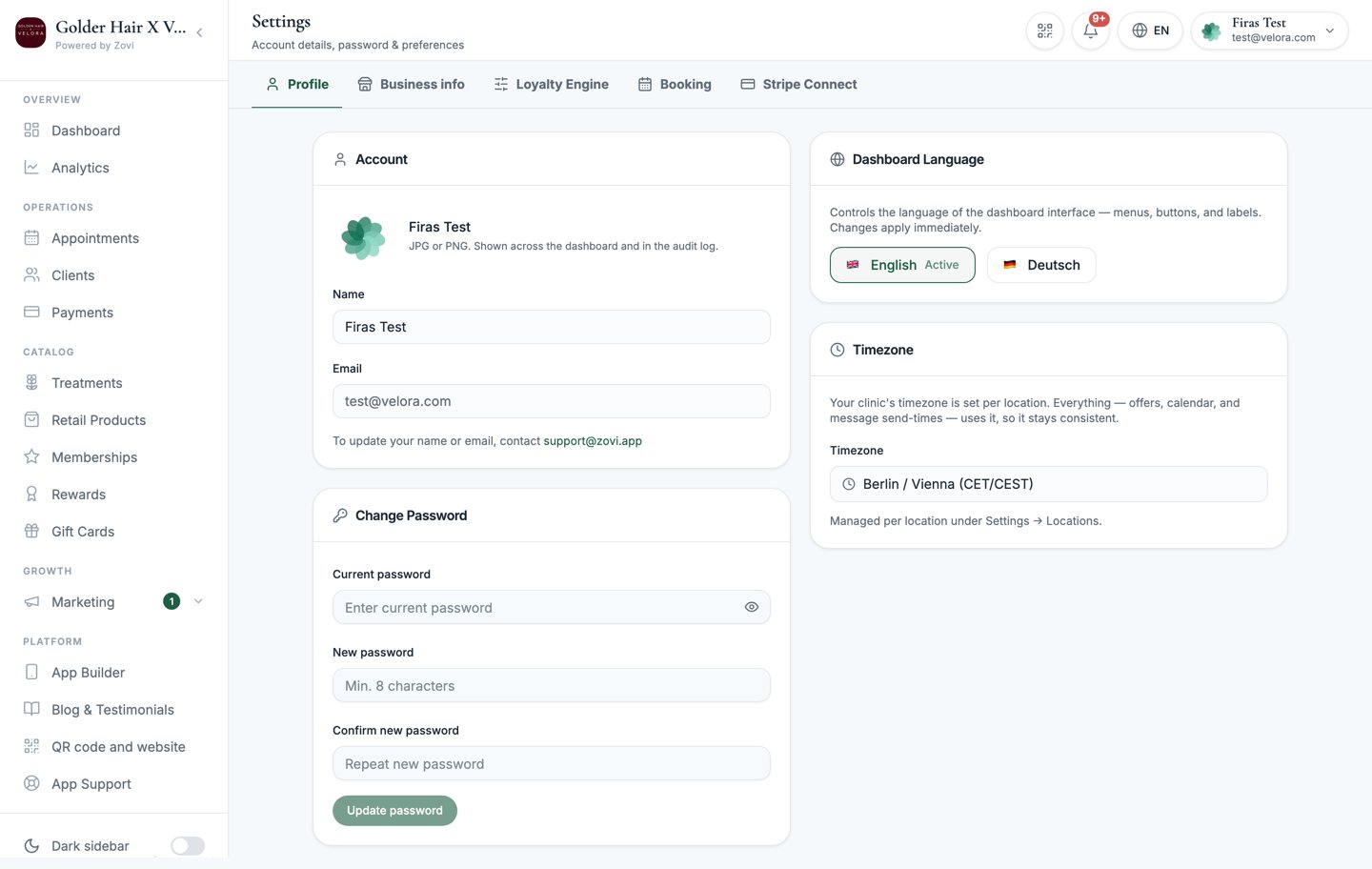
Screenshot: the Profile settings page showing the profile photo, the read-only Name and Email, the Change Password card, Dashboard Language, and the read-only Timezone card.
Your profile photo
Select the small camera icon on your avatar at the top of the page to upload a JPG or PNG picture of yourself. Your photo appears next to your name across the dashboard and in the audit log, so colleagues can see at a glance who did what.Your name and email
Your Name and Email are shown at the top of the page but are read-only, so you can’t edit them here.To change your name or email, contact Zovi support at
info@zoviapp.com. These details are tied to your login,
so they’re changed for you rather than self-service.
Change your password
Use the Change Password card to set a new password. You’ll need your current one to confirm it’s really you.1
Enter your current password
Type the password you sign in with today.
2
Enter a new password
Choose a new password of at least 8 characters.
3
Confirm the new password
Re-type the new password so it matches exactly.
4
Save
Select Update password. You’ll stay signed in on this device with your new
password active.
Dashboard language
Set the language the dashboard displays in with the Dashboard Language control. You can choose:- English
- Deutsch
Timezone
The Timezone card is read-only. It shows the timezone your clinic runs on, taken from your locations:- One location: a single line with that location’s timezone.
- Several locations: one line per location, so you can see them side by side.
- No locations yet: the card says so and prompts you to add one.
Everything runs on the clinic timezone: offers, the calendar, and message send
times. That keeps times consistent for you, your team, and your clients rather
than shifting per person.
Related
Business info & locations
Your clinic’s contact details, currency, and locations.
Security & access log
Review when Zovi support has accessed your dashboard.