

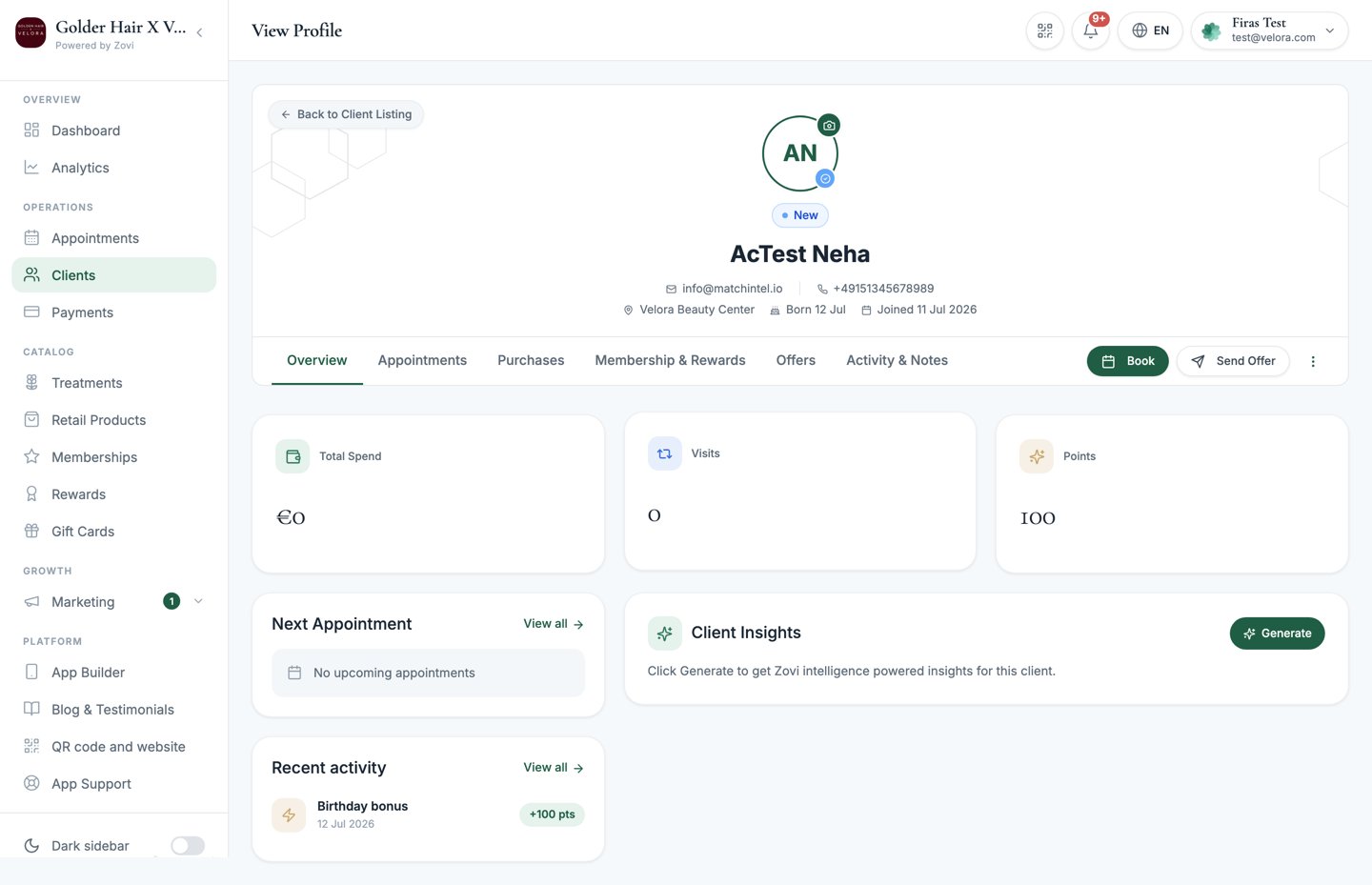
Screenshot: a client profile showing the hero with the status pill and header actions, and the six tabs below.
The hero
The top of the profile shows who the client is at a glance:- Status pill: the client’s lifecycle stage, one of
Active,New,At Risk, orChurned. - Membership pill: the plan they’re on, if any.
- Contact details: email, phone, location, date of birth, and when they joined.
Header actions
Next to the hero are the actions you’ll reach for most:
The More menu holds:
- Custom Plan: build a client-specific bundle for this client, with the client already filled in. See Custom plans.
- Message Client: send this client a message.
- Send invite: send a magic-link invite so they can install and join your app.
- Edit Profile: update the client’s details.
- Archive: Coming soon. This option isn’t functional yet.
The six tabs
The profile is organised into six tabs. Here’s what each one covers.Overview
Your at-a-glance summary of the client.- At-risk / churned banner: if the client is slipping away, a banner appears at the top with a Send Win-Back Offer button. See Offers & rewards.
- KPIs: Total Spend, Visits, and Points.
- Next Appointment: their next booking, if any.
- Membership: a card showing their current plan.
- Recent activity: a short timeline of the latest things that happened.
-
Client Insights: a lifecycle summary, churn risk, and a recommended next
step.
Client Insights is generated on demand. Select Generate to produce the analysis rather than it updating automatically.
- Charts: Spend per Order and Most Purchased Treatments help you see spending patterns at a glance.
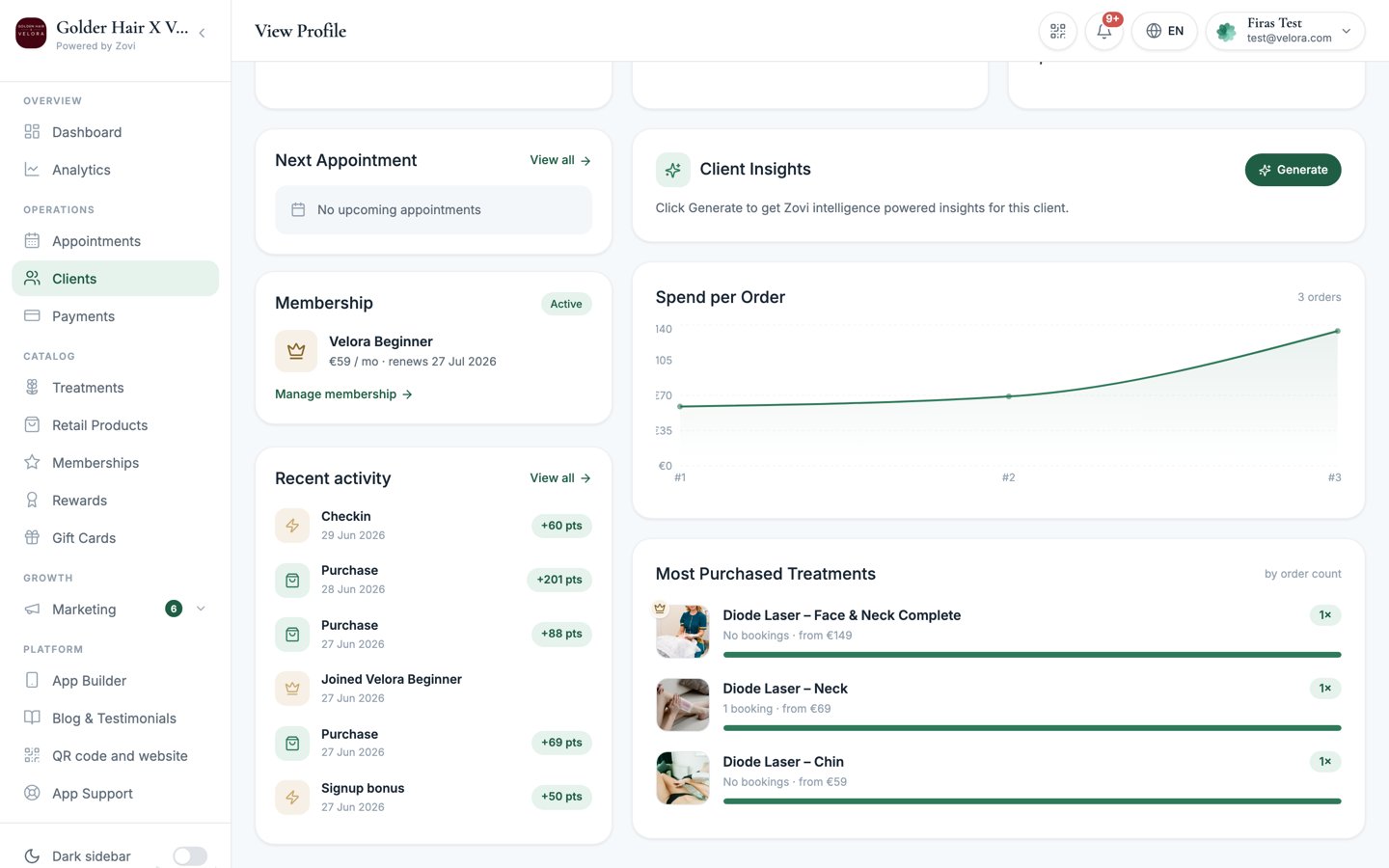
Screenshot: the Overview tab showing KPIs, Next Appointment, the Membership card, Recent activity, and the Client Insights panel.
Appointments
Every booking for this client, both upcoming and past, with each one’s status:Completed, Confirmed, Pending, Cancelled, or No-show. Select
Book appointment to add a new one. See the
appointments calendar for how bookings work.
Purchases
The client’s spending and orders:- Total Spend, Transactions, and Average order value.
- An Orders table. Select any order to open its detail.
- Payment history for the client.
Membership & Rewards
The client’s loyalty and membership home.- Loyalty tier: a banner showing their current tier and progress toward the next.
- Rewards journey: a timeline showing where they are, with each goal marked Unlocked, Active goal (with a “You are here” marker), or Locked.
- Active reward goals: the rewards they’re currently working toward.
- Membership card: with Pause and Cancel controls, and the slots included this period. A cancellation can be refused, usually because the member is still inside their minimum commitment period. The message tells you why and gives the date that period ends.
- Claimed credits: each credit the member has claimed has a + / - stepper, so you can correct how many sessions have been used.
- Points Balance and Adjust Points: manually add or remove points. Every adjustment writes a staff audit record naming who made the change. See Offers & rewards.
- Discount Benefits: the discounts the client is entitled to.
- Reward History: past rewards, each marked
Unlocked,Redeemed,Banked, orExpired.
Every credit adjustment is recorded against the staff member who made it, with
the old and the new figures. It’s an audited correction, not a silent edit.
Offers
A history of every offer this client has received, in a table showing the offer, its source, when it was received, its status, and the outcome.- Source can be
Manual,Automation,Zovi Intelligence, orBirthday. - Status can be
Delivered,Redeemed,Expired,Suppressed, orSkipped.
Activity & Notes
The client’s full timeline plus your internal record-keeping.- Timeline: the client journey, every meaningful event in order.
- Add internal note: jot down notes for your team. These are internal and aren’t shown to the client.
- Communications log: every push and email sent to the client, each marked
Sent,Delivered,Failed, orSkipped.
The client journey is how you follow a client’s whole story with your
clinic. It isn’t a single screen. It’s spread across three places: the
timeline on this Activity & Notes tab, the Recent activity feed on
the Overview tab, and the Rewards journey on the Membership &
Rewards tab. Together they show what the client did, what you sent them, and
where they are in your loyalty program.
Related tasks
Run a custom plan
Build a client-specific bundle of treatments and products.
Send an offer or reward
Target this client with an offer, or adjust their points.