

This is where clients contact your clinic. It’s the opposite direction to
Zovi Help & Support, which is where your clinic contacts
Zovi. Don’t confuse the two: client questions land here.
App Support isn’t the only place client questions surface. When
your AI Advisor hands a conversation over to your team, it
appears in the AI Advisor section tagged Handoff. Check both.
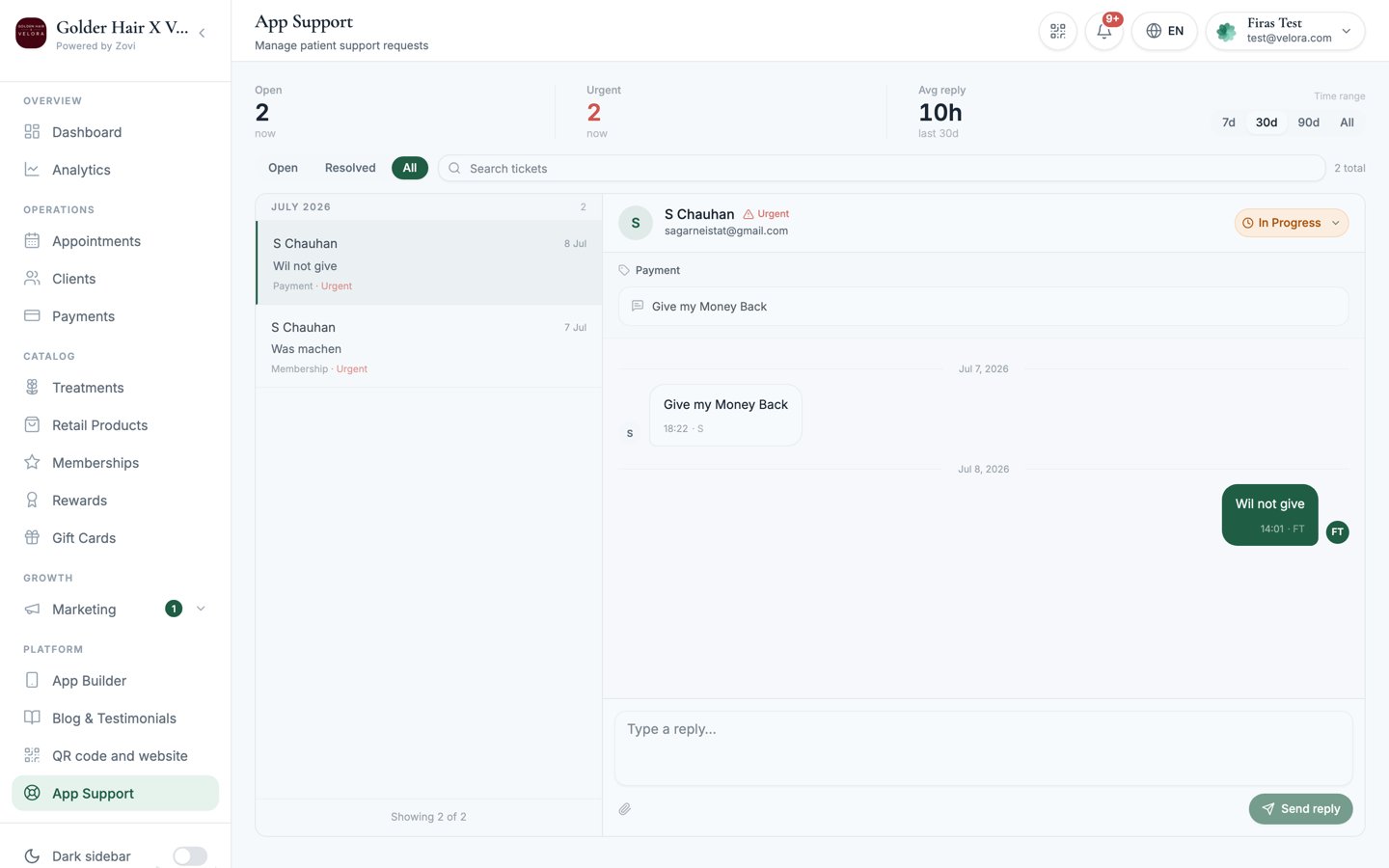
Screenshot: the App Support two-pane inbox with the stats and status filters at the top, the ticket list on the left, and a conversation with the reply composer on the right.
The inbox at a glance
Across the top of the inbox are stats that summarise your support load:- Open: how many tickets are still awaiting you.
- Urgent: how many need attention now.
- Avg reply: your average time to reply.
Find the right ticket
Above the ticket list you can narrow things down:- Status filters: show Open, Resolved, or All tickets.
- Search: find a specific ticket or client.
BookingPaymentMembershipApp bugRewardAccountOther
Reply to a client
Select a ticket to open the conversation on the right, then use the reply composer.1
Open the ticket
Select it in the list to load the full conversation.
2
Write your reply
Type in the composer (“Type a reply…”).
3
Send
Select Send reply, or press ⌘ ↵ to send. Your reply
goes to the client and is added to the thread.
Resolve and reopen
When a ticket is handled, select Resolve to close it. It moves out of your Open list. If the client writes back or the issue returns, select Reopen to bring it back to active.Related
Getting help from Zovi
When you need help from the Zovi team yourself.
The client profile
Open the profile of the client you’re helping.